Showing posts with label XNA. Show all posts

Tuesday, January 17, 2012

The GJK Algorithm

This code sample uses the GJK Algorithm to determine if two convex regions in 3-space are intersecting.
There's a good tutorial on how this algorithm actually works here and another one here. This is my implementation in c#.
One can extend this to handle any convex shape at all as long as it has a function to determine the furthest point in the shape along a give direction, ie. if one were to walk along a line determined by a direction, starting "behind" the shape, determine the last point of the shape that you'll pass. This basically boils down to finding the shape's position that has the largest dot product with the direction.
While this can be tricky, GJK can handle any convex shape that implements this function making it very flexible. It's also faster than many other methods and uses minimal resources.
Now on to the code.
PhysicsExtensionMethods static class:

static class PhysicsExtensionMethods
{
    public static bool IsInSameDirection(this Vector3 vector, Vector3 otherVector)
    {
        return Vector3.Dot(vector, otherVector) > 0;
    }

    public static bool IsInOppositeDirection(this Vector3 vector, Vector3 otherVector)
    {
        return Vector3.Dot(vector, otherVector) < 0;
    }
}

IConvexRegion interface:

public interface IConvexRegion
{
    /// <summary>
    /// Calculates the furthest point on the region 
    /// along a given direction.
    /// </summary>
    Vector3 GetFurthestPoint(Vector3 direction);
}

Simplex class:

/// <summary>
/// Represents a generalized Tetrehedron
/// </summary>
class Simplex
{
    List<Vector3> _vertices =
        new List<Vector3>();

    public int Count
    {
        get { return _vertices.Count; }
    }

    public Vector3 this[int i]
    {
        get { return _vertices[i]; }
    }

    public Simplex(params Vector3[] vertices)
    {
        for (int i = 0; i < vertices.Length; i++)
        {
            _vertices.Add(vertices[i]);
        }
    }
      
    public void Add(Vector3 vertex)
    {
        _vertices.Add(vertex);
    }

    public void Remove(Vector3 vertex)
    {
        _vertices.Remove(vertex);
    }
}

GJKAlgorithm static class:

public static class GJKAlgorithm
{
    public static bool Intersects(IConvexRegion regioneOne, IConvexRegion regionTwo)
    {
        //Get an initial point on the Minkowski difference.
        Vector3 s = Support(regioneOne, regionTwo, Vector3.One);
        
        //Create our initial simplex.
        Simplex simplex = new Simplex(s);

        //Choose an initial direction toward the origin.
        Vector3 d = -s;

        //Choose a maximim number of iterations to avoid an 
        //infinite loop during a non-convergent search.
        int maxIterations = 50;

        for (int i = 0; i < maxIterations; i++)
        {
            //Get our next simplex point toward the origin.
            Vector3 a = Support(regioneOne, regionTwo, d);

            //If we move toward the origin and didn't pass it 
            //then we never will and there's no intersection.
            if (a.IsInOppositeDirection(d))
            {
                return false;
            }
            //otherwise we add the new
            //point to the simplex and
            //process it.
            simplex.Add(a);
            //Here we either find a collision or we find the closest feature of
            //the simplex to the origin, make that the new simplex and update the direction
            //to move toward the origin from that feature.
            if (ProcessSimplex(ref simplex, ref d))
            {
                return true;
            }
        }
        //If we still couldn't find a simplex 
        //that contains the origin then we
        //"probably" have an intersection.
        return true;
    }

    /// <summary>
    ///Either finds a collision or the closest feature of the simplex to the origin, 
    ///and updates the simplex and direction.
    /// </summary>
    static bool ProcessSimplex(ref Simplex simplex, ref Vector3 direction)
    {
        if (simplex.Count == 2)
        {
            return ProcessLine(ref simplex, ref direction);
        }
        else if (simplex.Count == 3)
        {
            return ProcessTriangle(ref simplex, ref direction);
        }
        else
        {
            return ProcessTetrehedron(ref simplex, ref direction);
        }
    }

    /// <summary>
    /// Determines which Veronoi region of a line segment 
    /// the origin is in, utilizing the preserved winding
    /// of the simplex to eliminate certain regions.
    /// </summary>
    static bool ProcessLine(ref Simplex simplex, ref Vector3 direction)
    {
        Vector3 a = simplex[1];
        Vector3 b = simplex[0];
        Vector3 ab = b - a;
        Vector3 aO = -a;

        if (ab.IsInSameDirection(aO))
        {
            float dot = Vector3.Dot(ab, aO);
            float angle = (float)Math.Acos(dot / (ab.Length() * aO.Length()));
            direction = Vector3.Cross(Vector3.Cross(ab, aO), ab);
        }
        else
        {
            simplex.Remove(b);
            direction = aO;
        }
        return false;
    }

    /// <summary>
    /// Determines which Veronoi region of a triangle 
    /// the origin is in, utilizing the preserved winding
    /// of the simplex to eliminate certain regions.
    /// </summary>
    static bool ProcessTriangle(ref Simplex simplex, ref Vector3 direction)
    {
        Vector3 a = simplex[2];
        Vector3 b = simplex[1];
        Vector3 c = simplex[0];
        Vector3 ab = b - a;
        Vector3 ac = c - a;
        Vector3 abc = Vector3.Cross(ab, ac);
        Vector3 aO = -a;
        Vector3 acNormal = Vector3.Cross(abc, ac);
        Vector3 abNormal = Vector3.Cross(ab, abc);

        if (acNormal.IsInSameDirection(aO))
        {
            if (ac.IsInSameDirection(aO))
            {
                simplex.Remove(b);
                direction = Vector3.Cross(Vector3.Cross(ac, aO), ac);
            }
            else
            {
                if (ab.IsInSameDirection(aO))
                {
                    simplex.Remove(c);
                    direction = Vector3.Cross(Vector3.Cross(ab, aO), ab);
                }
                else
                {
                    simplex.Remove(b);
                    simplex.Remove(c);
                    direction = aO;
                }
            }
        }
        else
        {
            if (abNormal.IsInSameDirection(aO))
            {
                if (ab.IsInSameDirection(aO))
                {
                    simplex.Remove(c);
                    direction = Vector3.Cross(Vector3.Cross(ab, aO), ab);
                }
                else
                {
                    simplex.Remove(b);
                    simplex.Remove(c);
                    direction = aO;
                }
            }
            else
            {
                if (abc.IsInSameDirection(aO))
                {
                    direction = Vector3.Cross(Vector3.Cross(abc, aO), abc);
                }
                else
                {
                    direction = Vector3.Cross(Vector3.Cross(-abc, aO), -abc);
                }
            }
        }
        return false;
    }

    /// <summary>
    /// Determines which Veronoi region of a tetrahedron
    /// the origin is in, utilizing the preserved winding
    /// of the simplex to eliminate certain regions.
    /// </summary>
    static bool ProcessTetrehedron(ref Simplex simplex, ref Vector3 direction)
    {
        Vector3 a = simplex[3];
        Vector3 b = simplex[2];
        Vector3 c = simplex[1];
        Vector3 d = simplex[0];
        Vector3 ac = c - a;
        Vector3 ad = d - a;
        Vector3 ab = b - a;
        Vector3 bc = c - b;
        Vector3 bd = d - b;
            
        Vector3 acd = Vector3.Cross(ad, ac);
        Vector3 abd = Vector3.Cross(ab, ad);
        Vector3 abc = Vector3.Cross(ac, ab);
            
        Vector3 aO = -a;

        if (abc.IsInSameDirection(aO))
        {
            if (Vector3.Cross(abc, ac).IsInSameDirection(aO))
            {
                simplex.Remove(b);
                simplex.Remove(d);
                direction = Vector3.Cross(Vector3.Cross(ac, aO), ac);
            }
            else if (Vector3.Cross(ab, abc).IsInSameDirection(aO))
            {
                simplex.Remove(c);
                simplex.Remove(d);
                direction = Vector3.Cross(Vector3.Cross(ab, aO), ab);
            }
            else
            {
                simplex.Remove(d);
                direction = abc;
            }
        }
        else if (acd.IsInSameDirection(aO))
        {
            if (Vector3.Cross(acd, ad).IsInSameDirection(aO))
            {
                simplex.Remove(b);
                simplex.Remove(c);
                direction = Vector3.Cross(Vector3.Cross(ad, aO), ad);
            }
            else if (Vector3.Cross(ac, acd).IsInSameDirection(aO))
            {
                simplex.Remove(b);
                simplex.Remove(d);
                direction = Vector3.Cross(Vector3.Cross(ac, aO), ac);
            }
            else
            {
                simplex.Remove(b);
                direction = acd;
            }
        }
        else if (abd.IsInSameDirection(aO))
        {
            if (Vector3.Cross(abd, ab).IsInSameDirection(aO))
            {
                simplex.Remove(c);
                simplex.Remove(d);
                direction = Vector3.Cross(Vector3.Cross(ab, aO), ab);
            }
            else if (Vector3.Cross(ad, abd).IsInSameDirection(aO))
            {
                simplex.Remove(b);
                simplex.Remove(c);
                direction = Vector3.Cross(Vector3.Cross(ad, aO), ad);
            }
            else
            {
                simplex.Remove(c);
                direction = abd;
            }
        }
        else
        {
            return true;
        }

        return false;
    }

    /// <summary>
    /// Calculates the furthest point on the Minkowski 
    /// difference along a given direction.
    /// </summary>
    static Vector3 Support(
        IConvexRegion regionOne, 
        IConvexRegion regionTwo,
        Vector3 direction)
    {
        return regionOne.GetFurthestPoint(direction) -
            regionTwo.GetFurthestPoint(-direction);
    }
}

Sphere class:

public class Sphere : IConvexRegion
{
    public Vector3 Center;
    public float Radius;

    public Sphere(Vector3 center, float radius)
    {
        Center = center;
        Radius = radius;
    }

    public Vector3 GetFurthestPoint(Vector3 direction)
    {
        if (direction != Vector3.Zero)
        {
            direction.Normalize();
        }
        return Center + Radius * direction;
    }
}

Box class:

public class Box : IConvexRegion
{
    public Vector3 Center;
    Vector3 _halfDimensions = Vector3.One;
    Quaternion _orientation = Quaternion.Identity;

    public Vector3 Dimensions
    {
        get { return 2f * _halfDimensions; }
    }

    public Box(Vector3 center)
        : this(center, 1f, 1f, 1f) { }

    public Box(Vector3 center,
        float width,
        float height,
        float depth)
        : this(center, width, height, depth, Matrix.Identity) { }

    public Box(Vector3 center,
        float width,
        float height,
        float depth,
        Matrix rotationMatrix)
    {
        Center = center;
        _halfDimensions = new Vector3(
            width / 2f,
            height / 2f,
            depth / 2f);
        _orientation = Quaternion.CreateFromRotationMatrix(rotationMatrix);
    }

    public Vector3 GetFurthestPoint(Vector3 direction)
    {
        Vector3 halfHeight = _halfDimensions.Y * Vector3.Up;
        Vector3 halfWidth = _halfDimensions.X * Vector3.Right;
        Vector3 halfDepth = _halfDimensions.Z * Vector3.Backward;

        Vector3[] vertices = new Vector3[8];
        vertices[0] = halfWidth + halfHeight + halfDepth;
        vertices[1] = -halfWidth + halfHeight + halfDepth;
        vertices[2] = halfWidth - halfHeight + halfDepth;
        vertices[3] = halfWidth + halfHeight - halfDepth;
        vertices[4] = -halfWidth - halfHeight + halfDepth;
        vertices[5] = halfWidth - halfHeight - halfDepth;
        vertices[6] = -halfWidth + halfHeight - halfDepth;
        vertices[7] = -halfWidth - halfHeight - halfDepth;

        Matrix rotationTransform = Matrix.CreateFromQuaternion(_orientation);
        Matrix translation = Matrix.CreateTranslation(Center);
        Matrix world = rotationTransform *
            translation;

        Vector3 furthestPoint = Vector3.Transform(vertices[0], world);
        float maxDot = Vector3.Dot(furthestPoint, direction);
        for (int i = 1; i < 8; i++)
        {
            Vector3 vertex = Vector3.Transform(vertices[i], world);
            float dot = Vector3.Dot(vertex, direction);
            if (dot > maxDot)
            {
                maxDot = dot;
                furthestPoint = vertex;
            }               
        }
        return furthestPoint;
    }

    public Matrix CalculateWorld()
    {
        return Matrix.CreateScale(Dimensions) *
            Matrix.CreateFromQuaternion(_orientation) *
            Matrix.CreateTranslation(Center);
    }
}

I hope this is helpful to someone :) Enjoy!

Sunday, January 8, 2012

Game State Management

In this article we'll be building a game state management system similar to the one here on the Microsoft App Hub. It's a nice little framework if you've never checked it out before.
We'll be going through how to build something like this as well as extending the idea to support controls, eg. buttons, check-boxes, etc.
The basic idea is that we have a collection of GameScreens that update, handle input, and draw themselves. A ScreenManager class holds this collection and treats it as sort of a stack in the update process (although it's held in memory as a list). The top-most screen on the stack accepts input and forces screens below it to hide. We'll also have a collection of ScreenControls contained in each Screen. These will also update, handle input and draw but will have no effect on each other and will generally contain some events like Clicked or what have you. How these events are handled will be up to the GameScreen but the conditions under which each event fires will be decided by the ScreenControl.
For starters, go ahead and create a new XNA Windows Game project. I named mine GameStateTutorial.
We're going to need four classes to start go ahead and right click on the game project in your solution explorer and select Add -> Class... then add a class named ScreenManager. Do the same thing to create a GameScreen class, an InputState class and a ScreenControl class.
Let's work on the InputState class first.
This class will watch for player input and will be passed to screens when they handle input.
class InputState
{
    //We're going to handle the XBox case for input too so we'll
    //need to specify the max number of players.
    const int _maxInputs = 4;

    //We'll hold the input state for each player in arrays.
    public readonly KeyboardState[] CurrentKeyStates;
    public readonly KeyboardState[] PreviousKeyStates;
    public readonly GamePadState[] CurrentGamePadStates;
    public readonly GamePadState[] PreviousGamePadStates;

    //And we want to keep track of whether or not a game pad
    //was ever connected so we'll use another array for that.
    public readonly bool[] GamePadWasConnected;

    //There's only one possible mouse input since there's
    //no mouse for the Xbox.
    MouseState _currentMouseState;
    MouseState _previousMouseState;

    public MouseState CurrentMouseState
    {
        get { return _currentMouseState; }
    }

    public MouseState PreviousMouseState
    {
        get { return _previousMouseState; }
    }

    public InputState()
    {
        CurrentKeyStates = new KeyboardState[_maxInputs];
        PreviousKeyStates = new KeyboardState[_maxInputs];
        CurrentGamePadStates = new GamePadState[_maxInputs];
        PreviousGamePadStates = new GamePadState[_maxInputs];
        CurrentGamePadStates = new GamePadState[_maxInputs];
        GamePadWasConnected= new bool[_maxInputs];
    }

    public void Update()
    {
        //We update the state of each player.
        for (int i = 0; i < _maxInputs; i++)
        {
            PreviousKeyStates[i] = CurrentKeyStates[i];
            CurrentKeyStates[i] = Keyboard.GetState((PlayerIndex)i);
            PreviousGamePadStates[i] = CurrentGamePadStates[i];
            CurrentGamePadStates[i] = GamePad.GetState((PlayerIndex)i);
            
            //if a game pad was ever connected we set that to true.
            if (CurrentGamePadStates[i].IsConnected)
            {
                GamePadWasConnected[i] = true;
            }
        }

        _previousMouseState = _currentMouseState;
        _currentMouseState = Mouse.GetState();
    }

    //This method checks to see if a key has just been pressed this frame.
    //We have a PlayerIndex as a nullable parameter; if it is null we'll check
    //for input from every player, otherwise just from the specified player.  
    //The out parameter, playerIndex, returns which player pressed the key.
    public bool IsNewKeyPressed(
        Keys key,
        PlayerIndex? controllingPlayer,
        out playerIndex)
    {
        if (controllingPlayer != null)
        {
            playerIndex = controllingPlayer.Value;
            int i = (int)playerIndex;
            
            return (CurrentKeyState[i].IsKeyDown(key) &&
                PreviousKeyState[i].IsKeyUp(key));
        }
        else
        {
            return (IsNewKeyPressed(key, PlayerIndex.One, out playerIndex) ||
                IsNewKeyPressed(key, PlayerIndex.Two, out playerIndex) ||
                IsNewKeyPressed(key, PlayerIndex.Three, out playerIndex) ||
                IsNewKeyPressed(key, PlayerIndex.Four, out playerIndex));
        }
    }

    //We do basically the same thing for game pad buttons.
    public bool IsNewButtonPressed(
        Buttons button,
        PlayerIndex? controllingPlayer,
        out playerIndex)
    {
        if (controllingPlayer != null)
        {
            playerIndex = controllingPlayer.Value;
            int i = (int)playerIndex;
            
            return (CurrentGamePadState[i].IsButtonDown(button) &&
                PreviousGamePadState[i].IsButtonUp(button));
        }
        else
        {
            return (IsNewButtonPressed(key, PlayerIndex.One, out playerIndex) ||
                IsNewButtonPressed(key, PlayerIndex.Two, out playerIndex) ||
                IsNewButtonPressed(key, PlayerIndex.Three, out playerIndex) ||
                IsNewButtonPressed(key, PlayerIndex.Four, out playerIndex));
        }
    }

    //And a simple method to check for a left mouse click.
    public bool WasMouseLeftClicked()
    {
        return (_currentMouseState.LeftButton == ButtonState.Pressed &&
            _previousMouseState.LeftButton == ButtonState.Released);
    }
}
That's all we need for now.
Let's work on the ScreenControl class. These will be used for our buttons and labels and such.
abstract class ScreenControl
{
    Vector2 _position;
    GameScreen _screen;
    
    public Vector2 Position
    {
        get { return _position; }
        set { _position = value; }
    }

    public GameScreen Screen
    {
        get { return _screen; }
    }

    public abstract int Width { get; set; }
    public abstract int Height { get; set; }

    public ScreenControl(GameScreen screen)
    {
        _screen = screen;
    }

    public virtual void LoadContent(ContentManager content) { }
    
    //The screens transition on and off and the positionTransform parameter will help us have
    //our controls slide in and out of view as the screen transitions.
    public virtual void HandleInput(InputState input, Matrix positionTransform) { }

    public virtual void Update(GameTime gameTime, Matrix positionTransform) { }

    //The alpha parameter has a similar purpose to the positionTransform.
    public virtual void Draw(GameTime gameTime, Matrix positionTransform, float alpha) { }
    
    public virtual Rectangle CalculateControlRectangle(Matrix positionTransform)
    {
        Vector2 transformedPosition = Vector2.Transform(_position, positionTransform);
        return new Rectangle(
            (int)transformedPosition.X,
            (int)transformedPosition.Y,
            Width,
            Height);
    }
}
Next up is the GameScreen class. We need it to be able to transition on and off smoothly so it will contain an enum that represents its transition state as well as how far transitioned it is, the total time it takes to transition on or off, whether or not it's a pop-up screen, and several other fields and helper methods.
//The transition state of the screen.
public enum ScreenState
{
    TransitionOn,
    TransitionOff,
    Active,
    Hidden,
}
abstract class GameScreen
{
    PlayerIndex? _controllingPlayer;
    ScreenManager _screenManager;
    bool _isExiting = false;
    bool _isPopup = false;
    ScreenState _state = ScreenState.TransitionOn;
    TimeSpan _transitionOnTime = TimeSpan.Zero;
    TimeSpan _transitionOffTime = TimeSpan.Zero;
    
    //_transitionPosition at 1f means full transition while 0f means no transition.
    float _transitionPosition = 1f;

    bool _otherScreenHasFocus;
    List<ScreenControl> _controls = new List<ScreenControl>();

    public PlayerIndex? ControllingPlayer
    {
        get { return _controllingPlayer; }
        internal set { _controllingPlayer = value; }
    }

    public ScreenManager ScreenManager
    {
        get { return _screenManager; }
        internal set { _screenManager = value; }
    }

    public bool IsPopup
    {
        get { return _isPopup; }
        protected set { _isPopup = value; }
    }

    public bool IsActive
    {
        get
        {
            return !_otherScreenHasFocus &&
                (_state == ScreenState.TransitionOn ||
                _state == ScreenState.Active);
        }
    }

    public ScreenState ScreenState 
    {
        get { return _state; }
        protected set { _state = value; }
    }

    public float TransitionAlpha 
    {
        get { return 1f - _transitionPosition; }
    }

    public float TransitionPosition 
    {
        get { return _transitionPosition; }
    }

    public bool IsExiting
    {
        get { return _isExiting; }
        protected internal set { _isExiting = value; }
    }

    public TimeSpan TransitionOnTime
    {
        get { return _transitionOnTime; }
        protected set { _transitionOnTime = value; }
    }

    public TimeSpan TransitionOffTime
    {
        get { return _transitionOffTime; }
        protected set { _transitionOffTime = value; }
    }

    public IList<ScreenControl> Controls
    {
        get { return _controls; }
    }

    //Loads the content of each control.  We're getting the
    //content manager from ScreenManager.Game but we can override this.
    public virtual void LoadContent() 
    {
        ContentManager content = ScreenManager.Game.Content;
        foreach (ScreenControl control in _controls)
        {
            control.LoadContent(content);
        }
    }

    public virtual void UnloadContent() { }

    //This helper method determines how to move the controls while
    //we're transitioning in or out and can be overridden for different behavior.
    //A control can also determine its own transition behavior since this Matrix
    //is passed along in the Update, HandleInput and Draw methods and the
    //ScreenControl can use it or not.
    protected virtual Matrix CalculateTransitionOffset()
    {
        float transitionOffset = (float)Math.Pow(TransitionPosition, 2);
        Vector2 positionTranslation;
        if (_state == ScreenState.TransitionOn)
        {
            positionTranslation = new Vector2(-256 * transitionOffset, 0);
        }
        else if (_state == ScreenState.TransitionOff)
        {
            positionTranslation = new Vector2(512 * transitionOffset, 0);
        }
        else
        {
            positionTranslation = Vector2.Zero;
        }
        Matrix transform = Matrix.CreateTranslation(new Vector3(positionTranslation, 0));
        return transform;
    }

    //This helper method increments the _transitionPosition the appropriate
    //amount and then returns true if it's still transitioning
    //or false if it's done.
    bool UpdateTransition(
        GameTime gameTime,
        TimeSpan time,
        int direction)
    {
        float transitionDelta;
        if (time == TimeSpan.Zero)
        {
            transitionDelta = 1;
        }
        else
        {
            transitionDelta =
                (float)(gameTime.ElapsedGameTime.TotalMilliseconds / time.TotalMilliseconds);
        }

        _transitionPosition += transitionDelta * direction;

        if ((direction < 0 && _transitionPosition <= 0) ||
            (direction > 0 && _transitionPosition >= 1))
        {
            _transitionPosition = MathHelper.Clamp(
                _transitionPosition, 0f, 1f);
            return false;
        }

        return true;
    }

    //This updates the transition state as well as the
    //the controls.
    //if a screen is exiting it transitions off and then removes itself
    //from the ScreenManager and if it's covered by another screen
    //then it transitions off to hide.
    //otherwise, it's either active or transitioning on.
    public virtual void Update(
        GameTime gameTime,
        bool otherScreenHasFocus,
        bool coveredByOtherScreen)
    {
        _otherScreenHasFocus = otherScreenHasFocus;
        if (_isExiting)
        {
            _state = ScreenState.TransitionOff;
            if (!UpdateTransition(gameTime, _transitionOffTime, 1))
            {
                ScreenManager.RemoveScreen(this);
            }
        }
        else if (coveredByOtherScreen)
        {
            if (UpdateTransition(gameTime, _transitionOffTime, 1))
            {
                _state = ScreenState.TransitionOff;
            }
            else
            {
                _state = ScreenState.Hidden;
            }
        }
        else
        {
            if (UpdateTransition(gameTime, _transitionOnTime, -1))
            {
                _state = ScreenState.TransitionOn;
            }
            else
            {
                _state = ScreenState.Active;
            }
        }

        foreach (ScreenControl control in _controls)
        {
            Matrix transform = CalculateTransitionOffset();
            control.Update(gameTime, transform);
        }
    }

    public virtual void HandleInput(InputState input)
    {
        foreach (ScreenControl control in _controls)
        {
            Matrix transform = CalculateTransitionOffset();
            control.HandleInput(input, transform);
        }
    }

    public virtual void Draw(GameTime gameTime)
    {
        SpriteBatch spriteBatch = ScreenManager.SpriteBatch;
        Matrix transform = CalculateTransitionOffset();

        spriteBatch.Begin();
        foreach (ScreenControl control in _controls)
        {
            control.Draw(
                gameTime,
                transform,
                TransitionAlpha);
        }
        spriteBatch.End();
    }

    public void ExitScreen()
    {
        if (_transitionOffTime == TimeSpan.Zero)
        {
            ScreenManager.RemoveScreen(this);
        }
        else
        {
            _isExiting = true;
        }
    }
}
Since we'll be using the mouse for this tutorial, let's make a Cursor class and add an image to draw for a mouse cursor.
Here's a cursor image.

And the Cursor class:
class Cursor
{
    Texture2D _texture;
    Vector2 _position;

    public Texture2D Texture
    {
        get { return _texture; }
        set { _texture = value; }
    }

    public void LoadContent(ContentManager content)
    {
        if (_texture == null)
        {
            _texture = content.Load("cursor_texture");
        }
    }

    public void Update(InputState input)
    {
        _position = new Vector2(
            (float)input.CurrentMouseState.X,
            (float)input.CurrentMouseState.Y);

    }

    public void Draw(SpriteBatch spriteBatch)
    {
        spriteBatch.Draw(
            _texture,
            _position,
            Color.White);
    }
}
Now let's move on to the ScreenManager which as the name suggests, will manage a collection of screens. This class will inherit from DrawableGameComponent so it will contain a Game object passed in through the constructor. It will also override some virtual functions for loading content, updating and drawing.
At this point we're also going to need a few more assets to load. Go ahead and right click on the content project and select Add -> New Item... and then in the dialogue that appears select Sprite Font and give it a name. I named mine "menu_font.spritefont". While we're here let's add an image to use as a background. Here's some ugly blue ellipses.


And a button texture for later.


class ScreenManager : DrawableGameComponent
{
    List<GameScreen> _screens = new List<GameScreen>();
    List<GameScreen> _screensToUpdate = new List<GameScreen>();
    InputState _input = new InputState();
    SpriteBatch _spriteBatch;
    SpriteFont _font;
    Texture2D _blankTexture;
    bool _isInitialized = false;
    Cursor _cursor = new Cursor();

    public SpriteBatch SpriteBatch
    {
        get { return _spriteBatch; }
    }

    public SpriteFont Font
    {
        get { return _font; }
    }

    public ScreenManager(Game game)
        : base(game) { }


    public override void Initialize()
    {
        base.Initialize();
        //Now we have a GraphicsDevice initialized in the Game class
        //and we set _isInitialized to true.
        _isInitialized = true;
    }

    protected override void LoadContent()
    {
        ContentManager content = Game.Content;
        _spriteBatch = new SpriteBatch(Game.GraphicsDevice);

        _font = content.Load<SpriteFont>("menu_font");

        //We have a 1 by 1 white texture we can use for
        //different effects like fading to black.            
        _blankTexture = new Texture2D(Game.GraphicsDevice, 1, 1);
        Color[] colorData = { Color.White };
        _blankTexture.SetData<Color>(colorData);

        _cursor.LoadContent(content);
        foreach (GameScreen screen in _screens)
        {
            screen.LoadContent();
        }
    }

    protected override void UnloadContent()
    {
        foreach (GameScreen screen in _screens)
        {
            screen.UnloadContent();
        }
    }

    public override void Update(GameTime gameTime)
    {
        _input.Update();
        
        _cursor.Update(_input);

        //Here we populate a temporary list to update.
        _screensToUpdate.Clear();
        foreach (GameScreen screen in _screens)
        {
            _screensToUpdate.Add(screen);
        }

        //We'll need a couple of booleans to keep track
        //of which screens are covered by other screens
        //or accepting input.
        bool otherScreenHasFocus = !Game.IsActive;
        bool coveredByOtherScreen = false;

        //We iterate through the list backwards, popping a screen off the top,
        //updating it and determining whether or not to accept input
        //or cover screens below it.
        while (_screensToUpdate.Count > 0)
        {
            GameScreen screen = _screensToUpdate[_screensToUpdate.Count - 1];
            _screensToUpdate.RemoveAt(_screensToUpdate.Count - 1);

            screen.Update(gameTime, otherScreenHasFocus, coveredByOtherScreen);

            if (screen.ScreenState == ScreenState.TransitionOn ||
                screen.ScreenState == ScreenState.Active)
            {
                if (!otherScreenHasFocus)
                {
                    screen.HandleInput(_input);
                    otherScreenHasFocus = true;
                }
                if (!screen.IsPopup)
                {
                    coveredByOtherScreen = true;
                }
            }
        }
    }

    public override void Draw(GameTime gameTime)
    {
        foreach (GameScreen screen in _screens)
        {
            if (screen.ScreenState != ScreenState.Hidden)
            {
                screen.Draw(gameTime);
            }
        }
        
        SpriteBatch.Begin();
        _cursor.Draw(SpriteBatch);
        SpriteBatch.End();
    }

    //If the game has initialized we can unload or load content.
    public void RemoveScreen(GameScreen screen)
    {
        if (_isInitialized)
        {
            screen.UnloadContent();
        }
        _screens.Remove(screen);
        _screensToUpdate.Remove(screen);
    }

    //Here we set the screen's ScreenManager, which player is
    //controlling the screen, and load its content if appropriate.
    public void AddScreen(GameScreen screen, PlayerIndex? controllingPlayer)
    {
        screen.ScreenManager = this;
        screen.ControllingPlayer = controllingPlayer;
        screen.IsExiting = false;
        _screens.Add(screen);
        if (_isInitialized)
        {
            screen.LoadContent();
        }
    }

    //We want access to the screens in the collection but
    //not the collection itself.
    public GameScreen[] GetScreens()
    {
        return _screens.ToArray();
    }

    //A helper method for fading to black.
    public void FadeBackBufferToBlack(float alpha)
    {
        Viewport viewport = GraphicsDevice.Viewport;
        _spriteBatch.Begin();
        _spriteBatch.Draw(
            _blankTexture,
            new Rectangle(
                0, 0,
                viewport.Width, viewport.Height),
            Color.Black * alpha);
        _spriteBatch.End();
    }
}
Now we have a basic framework that we can build off of. Let's start by making a couple new classes, a ScreenControl for displaying a texture which we can use in a BackgroundScreen.
class TextureDisplay : ScreenControl
{
    int _width;
    int _height;
    Texture2D _texture;

    public Texture2D Texture
    {
        get { return _texture; }
        set { _texture = value; }
    }

    public override int Width
    {
        get { return _width; }
        set { _width = value; }
    }

    public override int Height
    {
        get { return _height; }
        set { _height = value; }
    }

    public TextureDisplay(GameScreen screen)
        : base(screen)
    {
    }

    public override void LoadContent(ContentManager content)
    {
        if (_texture == null)
        {
            _texture = content.Load("blue_ellipses");
        }
        Viewport viewport = Screen.ScreenManager.GraphicsDevice.Viewport;
        if (_width <= 0)
        {
            _width = viewport.Width;
        }
        if (_height <= 0)
        {
            _height = viewport.Height;
        }
    }

    public override void Draw(GameTime gameTime, Matrix positionTransform, float alpha)
    {
        SpriteBatch spriteBatch = Screen.ScreenManager.SpriteBatch;
        spriteBatch.Draw(
            _texture,
            CalculateControlRectangle(positionTransform),
            Color.White * alpha);
    }
}
Now we'll make our BackgroundScreen which will contain a single TextureDisplay control. This screen won't slide in or out so we'll override the CalculateTransitionOffset to return the identity matrix.
class BackgroundScreen : GameScreen
{
    public BackgroundScreen()
    {
        TransitionOnTime = TimeSpan.FromSeconds(.5d);
        TransitionOffTime = TimeSpan.FromSeconds(.5d);
        TextureDisplay background = new TextureDisplay(this);
        Controls.Add(background);
    }

    public override void Update(
        GameTime gameTime,
        bool otherScreenHasFocus,
        bool coveredByOtherScreen)
    {
        //The background screen never hides so it's never covered.
        base.Update(gameTime, otherScreenHasFocus, false);
    }

    protected override Matrix CalculateTransitionOffset()
    {
        return Matrix.Identity;
    }
}
We can test this out now. Here's my Game1 class:
public class Game1 : Microsoft.Xna.Framework.Game
{
    GraphicsDeviceManager graphics;
    ScreenManager screenManager;

    public Game1()
    {
        graphics = new GraphicsDeviceManager(this);
        Content.RootDirectory = "Content";

        screenManager = new ScreenManager(this);
        screenManager.AddScreen(new BackgroundScreen(), null);

        Components.Add(screenManager);
    }

    protected override void Initialize()
    {        
        base.Initialize();
    }

      
    protected override void Update(GameTime gameTime)
    {           
        base.Update(gameTime);
    }

      
    protected override void Draw(GameTime gameTime)
    {
        GraphicsDevice.Clear(Color.Black);           
        base.Draw(gameTime);
    }
}
Which looks like this when we run it:
Before we can handle events, we need to make an EventArgs class that holds a PlayerIndex so we know which player trigger the event.
class PlayerIndexEventArgs : EventArgs
{
    PlayerIndex _playerIndex;

    public PlayerIndex PlayerIndex
    {
    get { return _playerIndex; }
    }

    public PlayerIndexEventArgs(PlayerIndex playerIndex)
    {
        _playerIndex = playerIndex;
    }
}
Let's continue by making two more ScreenControl classes: a ScreenLabel class and a GameButton class.
class ScreenLabel : ScreenControl
{
    string _text;

    public string Text
    {
        get { return _text; }
        set { _text = value; }
    }

    public override int Width
    {
        get
        {
            return (int)Screen.ScreenManager.Font.MeasureString(_text).X;
        }
        set { }
    }

    public override int Height
    {
        get
        {
            return Screen.ScreenManager.Font.LineSpacing;
        }
        set { }
    }

    public ScreenLabel(GameScreen screen, string text)
        : base(screen)
    {
        _text = text;
    }

    //Instead of using the default positionTransform we'll make the
    //labels move up and down during transition.
    Matrix CalculateLabelTransform()
    {
        float transitionOffset = (float)Math.Pow(Screen.TransitionPosition, 2);
        Vector2 translation = new Vector2(0f, -transitionOffset * 100);
        Matrix labelTransform = Matrix.CreateTranslation(new Vector3(translation, 0f));
        return labelTransform;
    }

    public override void Draw(GameTime gameTime, Matrix positionTransform, float alpha)
    {
        SpriteBatch spriteBatch = Screen.ScreenManager.SpriteBatch;
        SpriteFont font = Screen.ScreenManager.Font;

        Matrix labelTransform = CalculateLabelTransform();

        Vector2 drawPosition = Vector2.Transform(Position, labelTransform);
        Vector2 labelOrigin = font.MeasureString(_text) / 2;
        Color labelColor = new Color(192, 192, 192) * alpha;
        float labelScale = 1.25f;
            
        spriteBatch.DrawString(
            font,
            _text,
            drawPosition,
            labelColor,
            0f,
            labelOrigin,
            labelScale,
            SpriteEffects.None,
            0f);
    }
}
And now the GameButton class. This will contain a Clicked event which will be fired whenever the user LeftClicks within the control's bounds.
class GameButton : ScreenControl
{
    int _width = 150;
    int _height = 50;
    Texture2D _buttonTexture;
    string _text;
        
    public event EventHandler<PlayerIndexEventArgs> Clicked;

    public Texture2D ButtonTexture
    {
        get { return _buttonTexture; }
        set { _buttonTexture = value; }
    }

    public string Text
    {
        get { return _text; }
        set { _text = value; }
    }

    public override int Width
    {
        get { return _width; }
        set { _width = value; }
    }

    public override int Height
    {
        get { return _height; }
        set { _height = value; }
    }

    public GameButton(GameScreen screen, string text)
        : base(screen)
    {
        _text = text;
    }

    public override void LoadContent(ContentManager content)
    {
        if (_buttonTexture == null)
        {
            _buttonTexture = content.Load<Texture2D>("button_texture");
        }
    }

    public override void HandleInput(InputState input, Matrix positionTransform)
    {
        Point mousePosition = new Point(
            input.CurrentMouseState.X,
            input.CurrentMouseState.Y);
        Rectangle buttonRectangle = CalculateControlRectangle(positionTransform);
        
        if (input.IsMouseLeftClicked() &&
            buttonRectangle.Contains(mousePosition))
        {
            OnClick(PlayerIndex.One);
        }
    }

    public override void Draw(GameTime gameTime, Matrix positionTransform, float alpha)
    {
        SpriteBatch spriteBatch = Screen.ScreenManager.SpriteBatch;
        SpriteFont font = Screen.ScreenManager.Font;
            
        //We need to position the button text in the center
        //of the button.
        Rectangle buttonRectangle = CalculateControlRectangle(positionTransform);
        Vector2 buttonPosition = Vector2.Transform(Position, positionTransform);
        Vector2 textDimensions = font.MeasureString(_text);
        Vector2 buttonDimensions = new Vector2(
            (int)buttonRectangle.Width, 
            (int)buttonRectangle.Height);
        Vector2 textPosition = buttonPosition + buttonDimensions / 2f - textDimensions / 2f;


        spriteBatch.Draw(
            _buttonTexture,
            buttonRectangle,
            Color.White * alpha);

        spriteBatch.DrawString(
            font,
            _text,
            textPosition,
            Color.White * alpha);
    }

    protected void OnClick(PlayerIndex playerIndex)
    {
        if (Clicked != null)
        {
            Clicked(this, new PlayerIndexEventArgs(playerIndex));
        }
    }
}
Now we can use both of these new ScreenControls in making our MenuScreen and MainMenuScreen classes.
abstract class MenuScreen : GameScreen
{
    ScreenLabel _menuTitle;

    public MenuScreen(string title)
    {
        TransitionOnTime = TimeSpan.FromSeconds(.5);
        TransitionOffTime = TimeSpan.FromSeconds(.5);

        _menuTitle = new ScreenLabel(
            this,
            title);
        Controls.Add(_menuTitle);
    }

    public override void LoadContent()
    {
        base.LoadContent();
        Viewport viewport = ScreenManager.GraphicsDevice.Viewport;
        _menuTitle.Position = new Vector2(viewport.Width / 2, 80f);
    }

    protected virtual void OnCancel(PlayerIndex playerIndex)
    {
        ExitScreen();
    }

    //This let's us hook the OnCancel method to control events.
    protected void OnCancel(object sender, PlayerIndexEventArgs e)
    {
        OnCancel(e.PlayerIndex);
    }
}
And finally our MainMenuScreen:
class MainMenuScreen : MenuScreen
{
    GameButton _exit;

    public MainMenuScreen()
        : base("Main Menu")
    {
        _exit = new GameButton(this, "Exit");
        _exit.Clicked += OnCancel;
        Controls.Add(_exit);
    }

    public override void LoadContent()
    {
        base.LoadContent();
        Viewport viewport = ScreenManager.GraphicsDevice.Viewport;
        _exit.Position = new Vector2(
            (int)viewport.Width / 2 - _exit.Width / 2,
            160f);
    }

    protected override void OnCancel(PlayerIndex playerIndex)
    {
        ScreenManager.Game.Exit();
    }
}
Now we can test it out! Change your Game1 class to look this this:
public class Game1 : Microsoft.Xna.Framework.Game
{
    GraphicsDeviceManager graphics;
    ScreenManager screenManager;

    public Game1()
    {
        graphics = new GraphicsDeviceManager(this);
        Content.RootDirectory = "Content";
        screenManager = new ScreenManager(this);
        screenManager.AddScreen(new BackgroundScreen(), null);
        screenManager.AddScreen(new MainMenuScreen(), null);

        Components.Add(screenManager);
    }

    protected override void Initialize()
    {        
        base.Initialize();
    }

      
    protected override void Update(GameTime gameTime)
    {           
        base.Update(gameTime);
    }

      
    protected override void Draw(GameTime gameTime)
    {
        GraphicsDevice.Clear(Color.Black);           
        base.Draw(gameTime);
    }
}
And running this should produce a Main menu that transitions in.

I'm going to leave it at that for this article but will probably pick it up again in a future one.
Thanks for reading!

Sunday, December 4, 2011

Intersection Testing in 2D

Whether or not you plan on making a game with a fancy physics engine you'll more than likely still have to check for collisions at some point. In games, a collision is generated when two or more pieces of geometry are intersecting. Testing to see if two geometrical figures are in intersection (or sometimes called interpenetration) can be a complicated and expensive task.

In this article I will go over several common shapes in 2 dimensions and investigate how we can test a pair of them for intersection. We will also discuss a general method for testing shapes of a certain class.
Responding to the intersections (and finding them fast) is beyond the scope of this article. This article is concerned only with checking for intersection but is still a pretty large subject.

If you're a little shaky on your mathematics, then I suggest that you refresh yourself thoroughly at least. A good understanding of high school math as well as a lot of college level stuff is integral in the development of games. There's no way around it.
That said, I am not trying to scare you so I will try to be as gentle as possible. The more you do it the easier it gets.

We'll go over the 2D shapes covered briefly then investigate how to test for an intersection between pairs of them.

The Circle


A circle is the set of points in the plane that are the same distance from a common point called its center. This distance from a point in the set to the center is its radius.
We can denote the center of a circle by a point in space with its x and y values, or by a vector and its radius by a real number. Although we'll be working with floats or doubles instead of the infinitude of the reals.
Now we can represent a circle by the equation:
$(x-c_x)^2+(y-c_y)^2=r^2$
Where,
$C = (c_x, c_y)$
is the circle's center point with its x and y components and r is the radius.
Every pair of reals, x and y that satisfy this equation for a given real number, r and a point C, is a point on the (unique) circle of radius, r centered at, C.


We can represent a circle simply by storing its position and radius into memory.
class Circle
{
    public Vector2 Center;
    public float Radius;
}

Rectangle


We'll be dealing with two kinds of rectangles here, axis-aligned, often called bounding boxes and non-axis-aligned. When we're referring to the axis-aligned situation we'll specifically say so, otherwise we'll just say 'rectangle' or 'box'.


Axis-aligned boxes have each of their edges parallel to the coordinate axis while the regular boxes do not.
The built-in Rectangle structure that comes with XNA is axis-aligned.
Many calculations become much simpler when we're dealing with rectangles that are axis-aligned but we'll be looking at both cases.
An axis-aligned box simply has a location (usually referring to the upper-left corner), a width and a height. No other information is needed to describe the bounding box.
class AxisAlignedBox
{
    public Vector2 Position;
    public float Width;
    public float Height;
}
In the other case we need to store a position, a width, a height and an angle of rotation.


Here, P is the position and,
$\theta$
(pronounced 'theta') is the angle. A positive angle is measured counter-clockwise.
In XNA, by default the origin is the upper-left hand corner of the sprite we're rotating but we'll normally be rotating a box about it's center or perhaps it's center of mass. We'll see how to deal with these things later on.

Other Polygons


There are many different polygons and the only ones we'll look at in any depth are the convex polygons. This is where it get very complicated very quickly and we'll briefly discuss a general method of testing.

Circle-circle test


Two circles in the plane don't intersect if the distance between their centers is greater than the sum of their radii. That is,

$d(c1, c2) = \sqrt{(c1_x-c2_x)^2+(c1_y-c2_y)^2} > r1+r2$

d(c1, c2) is the distance between the centers and c1 and c2 are the centers subscripted by their x or y component.
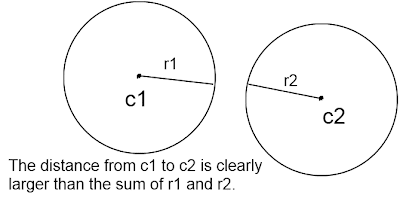
The distance from center to center is larger than their combined radii.  No intersection.
The distance between their centers is smaller than the sum of their radii, hence, they intersect.

To avoid expensive square root computations we usually compare the square of the distance to the square of the sum of the radii since the inequality remains true.
$(c1_x-c2_x)^2+(c1_y-c2_y)^2 >(r1+r2)^2$
the above is true if the circles don't touch.
Adding this to our Circle class,
class Circle
{
    public Vector2 Center;
    public float Radius;

    //Returns true if this circle intersects another
    //or they are 'just touching'.
    public bool Intersects(Circle circle)
    {
        Vector2 center1 = Center;
        Vector2 center2 = circle.Center;
        float radius1 = Radius;
        float radius2 = circle.Radius;

        float distanceSquared = 
            (float)Math.Pow((center1.X - center2.X), 2) +
            (float)Math.Pow((center1.Y - center2.Y), 2);
        float sumOfRadiiSquared = (float)Math.Pow(radius1 + radius2, 2);
        
        if (distanceSquared <= sumOfRadiiSquared)
        {
            return true;
        }
        else
        {
            return false;
        } 
    }
}

Box-box test (axis aligned)


The test for two axis-aligned boxes is fairly straight forward. We'll need to add a few properties to our class first though,
class AxisAlignedBox
{
    public Vector2 Position;
    public float Width;
    public float Height;

    //y value of uppermost side.
    public float Top
    {
        get { return Position.Y; }
    }

    //y value of lowest side.
    public float Bottom
    {
        get { return Position.Y + Height; }
    }

    //x value of left most side.
    public float Left
    {
        get { return Position.X; }
    }
    
    //x value of right most side.
    public float Right
    {
        get { return Position.X + Width; }
    }
}
The basic idea is that is if the rectangles intersect, then the top side of one (or the bottom side) will be within the bounds set by the top and bottom sides of the other rectangle. Likewise the left side of one (or the right side) will be within the bounds set by the left and right sides of the other rectangle.
Take a look at this picture.


Here, we are testing three different rectangles against the shaded rectangle we'll call, R.
The bottom side of A is below the top side of R and above the bottom side of R, ie. the bottom side of A is within the bounds set by the top and bottom sides of R.  Both the left and right sides of A are within the left-right bounds of R. Even though the top side of A is not within the top-bottom bounds, it still intersects.
For B, the top side is within the top and bottom bounds of R and the left side is within R's left and right bounds.
C, while its right side is within the left-right bounds of R, neither it's top nor its bottom sides are within the proper top-bottom bounds of R and it doesn't intersect.
Take a look at the follow case, though.

Rectangle D clearly intersects, but neither it's top nor bottom is within the top-bottom range of R.  However, both the top and bottom of R are in D's top-bottom range.
So, roughly in logical terms,
(bottom OR top is within top-bottom bounds of one OR the same with the other) AND
(left OR right is within left-right bounds of one OR the same with the other).
We're pretty much ready to write our algorithm.

class AxisAlignedBox
{
    public Vector2 Position;
    public float Width;
    public float Height;

    //y value of uppermost side.
    public float Top
    {
        get { return Position.Y; }
    }

    //y value of lowest side.
    public float Bottom
    {
        get { return Position.Y + Height; }
    }

    //x value of left most side.
    public float Left
    {
        get { return Position.X; }
    }
    
    //x value of right most side.
    public float Right
    {
        get { return Position.X + Width; }
    }

    public bool Intersects(AxisAlignedBox box)
    {
        bool areBottomsInBounds =
            (Bottom >= box.Top && Bottom <= box.Bottom) ||
            (box.Bottom >= Top && box.Bottom <= Bottom);

        bool areTopsInBounds =
            (Top >= box.Top && Top <= box.Bottom) ||
            (box.Top >= Top && box.Top <= Bottom);

        bool areLeftsInBounds =
            (Left >= box.Left && Left <= box.Right) ||
            (box.Left >= Left && box.Right <= Right);

        bool areRightsInBounds =
            (Right >= box.Left && Right <= box.Right) ||
            (box.Right >= Left && box.Right <= Right);

        bool intersects = (areBottomsInBounds || areTopsInBounds) &&
            (areLeftsInBounds || areRightsInBounds);


        return intersects;
    }
}
Another, way to do this which will also be enlightening later on is to note that for rectangle A in the above illustration, the distance from the top of A to the bottom of R is less than the sum of the height of A and the height of R, while at the same time, the distance between the left of A and the right of R is less than the sum of the width of A and width of R. In general, the distance between the uppermost and lowermost points is less than the sum of the heights and the distance between the leftmost and rightmost points is less than the sum of the widths.
The code for the other method,
class AxisAlignedBox
{
    public Vector2 Position;
    public float Width;
    public float Height;

    //y value of uppermost side.
    public float Top
    {
        get { return Position.Y; }
    }

    //y value of lowest side.
    public float Bottom
    {
        get { return Position.Y + Height; }
    }

    //x value of left most side.
    public float Left
    {
        get { return Position.X; }
    }
    
    //x value of right most side.
    public float Right
    {
        get { return Position.X + Width; }
    }

    public bool Intersects(AxisAlignedBox box)
    {
        //The nested Max calls find the maximum of four different values.
        //Similarly with the nested Min values we find the minimum of more than two values.
        float horizontalDistance = Math.Max(Right, 
                                       Math.Max(box.Right, 
                                           Math.Max(Left, box.Left))) - 
                                   Math.Min(Right, 
                                       Math.Min(box.Right, 
                                           Math.Min(Left, box.Left)));
        float verticalDistance =  Math.Max(Top, 
                                      Math.Max(box.Top, 
                                          Math.Max(Bottom, box.Bottom))) - 
                                  Math.Min(Top, 
                                      Math.Min(box.Top, 
                                          Math.Min(Bottom, box.Bottom)));

        bool intersects = (float)Math.Abs(horizontalDistance) <= Width + box.Width &&
                          (float)Math.Abs(verticalDistance) <= Height + box.Height
     
        return intersects;       
    }
}

Box-box test (general)

Before continuing further we need to talk about an important mathematical theorem called the separating axis theorem. We've already used a result of this theorem in the last example and it will end up being the basis for many other intersection problems in the future. We'll go into the theorem in some depth, what it implies and how we can use it to test for intersections.

The Separating Axis Theorem


The separating axis theorem states that two convex polygons do not intersect if and only if there exists a line such that when we project the shapes onto that line, the projections do not overlap. The line we project onto is called the axis of separation.

First let's clear up the term "projection onto a line".
The term, projection seems a little overloaded with definitions but they are all closely related.
In our case, we can say informally that we're 'casting a shadow' of the object onto a line.
This picture illustrates three shapes being projected onto an arbitrary line, the x-axis and the y axis.
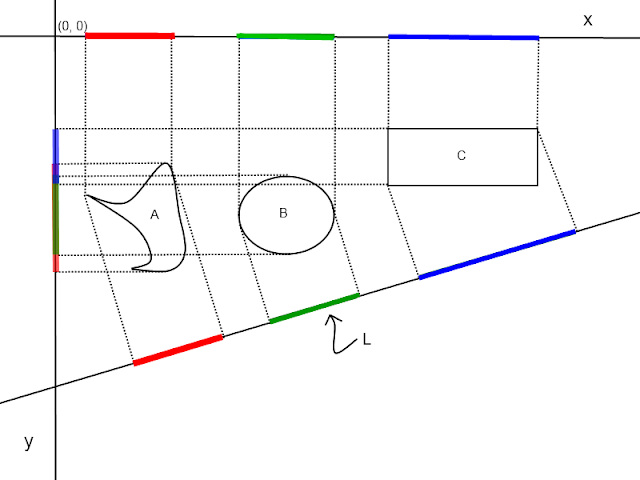
Here we see three shapes being projected onto three lines:  The x and y axis and an arbitrary line, L.
The projections are regions of the line. Notice shape C is an axis-aligned box; its x and y projections are the same left-right and top-bottom bounds that we used earlier. In fact, the term in the conditional that states the box we're testing must have its bottom OR top side within the top-bottom bound of the other box is analogous to saying that the boxes' projections onto the y-axis overlap (look at the illustration from the axis aligned box-box section to make sure you see why).
None of these shapes intersect so according to the theorem, there exists a line such that the shapes projections onto that line are separate. Here we see two: the x-axis and the line, L.
This theorem says a lot about when shapes don't intersect but what can we say about when they do? Well, we simply have to negate the theorem to see that two convex polygons intersect if and only if there does not exit a line with said properties. That is, no matter how many lines you project your polyhedra onto, the projections will always overlap.
This poses a problem since there are infinitely many lines we could check.
Luckily in the case of convex polygons there are only a few axis we need to check.
Notice in the axis-aligned box-box method, we only checked the projections of two lines: the x and the y axis. Since both boxes were aligned to those axis those were the only two we had to check.
For a convex polygon, it is sufficient to check the shapes against the axis determined by the normals of each edge (source). If we come across projections that don't overlap we have an early out which will speed up the calculation and if we get through them all and all the projections overlap, then the shapes intersect.
Once we have projections (or the length of them) we can check to see if they overlap similarly to the axis aligned case above.

Before we checked the total distance between the uppermost or lowermost points against the sum of the widths or heights depending.
Now we're checking the distance between the extreme points of the projections along the axis and testing that against the sum of the lengths of the projections. But how do we project these polygons against an axis and find these lengths to begin with?

To start, we'll need to know about vector projection.
The projection of $\bar{a}$ onto $\bar{b}$ is,
$(\bar{a}\cdot\bar{b})\bar{b}=(|\bar{a}|\cos{\theta})\bar{b}$
This can be thought of as the "$\bar{b}$ component of $\bar{a}$". It's in the direction of $\bar{b}$ with a magnitude that varies between $|\bar{a}|$ (when $\bar{a}$ is parallel to $\bar{b}$) and 0 (when $\bar{a}$ is normal to $\bar{b}$).
We also need to tweak our Box class a bit. A lot of the math becomes easier when we keep track of the box's center, its half-height and its half-width. These are similar to a circle's radius except they're vector quantities.


class Box
{
    //Pseudo-code...
    public Vector2 Center;
    public Vector2 HalfHeight;
    public Vector2 HalfWidth;
    public float Angle;
}
Now to measure a projection along a certain axis, take a look at the following illustration,

The half-width and half-height projections give us a handy way to measure a shape along an axis. As for the total distance we need only to project the distance between centers onto the axis and find that length. This give us half the total distance. So we can check the length of the projected vectors against that.

To sum up the algorithm we've been piecing together so far:
1. Get the normals of each box, removing duplicates and normals in the opposite direction.
For each normal:
2. Project both of the boxes' half-widths and half-heights onto it and find the sum of their lengths (note: not the length of their sum, since the projections point in opposite directions they tend to cancel eachother). We'll call these H1 and H2 for each box.
3. Project the difference vector of the boxes' centers onto the normal and find its length, we'll call it D.
4. if D > H1 + H2, then there's no overlap, hence no intersection. Otherwise:
5. if there's more normals get the next normal and repeat. Otherwise, all projections overlap and we have an intersection!
And now we're ready to take a look at our new Box class with the interection method.
class Box
{
    public Vector2 Center;
    //We store these as floats for now,
    //we only need the vector versions during
    //intersection testing.
    public float HalfWidth;
    public float HalfHeight;
    public float Angle;

    public bool Intersects(Box box)
    {
        //Transform the half measures
        Vector2 halfWidthVectOne = Vector2.Transform(
            HalfWidth * Vector2.UnitX, Matrix.CreateRotationZ(Angle));
        Vector2 halfHeightVectOne = Vector2.Transform(
            HalfHeight * Vector2.UnitY, Matrix.CreateRotationZ(Angle));
        Vector2 halfWidthVectTwo = Vector2.Transform(
            box.HalfWidth * Vector2.UnitX, Matrix.CreateRotationZ(box.Angle));
        Vector2 halfHeightVectTwo = Vector2.Transform(
            box.HalfHeight * Vector2.UnitY, Matrix.CreateRotationZ(box.Angle));
            
        //They'll work as normals too.
        Vector2[] normals = new Vector2[4];
        normals[0] = halfWidthVectOne;
        normals[1] = halfWidthVectTwo;
        normals[2] = halfHeightVectOne;
        normals[3] = halfHeightVectTwo;

        for (int i = 0; i < 4; i++)
        {
            normals[i].Normalize();

            //Project the half measures onto the normal...
            Vector2 projectedHWOne =
                Vector2.Dot(halfWidthVectOne, normals[i]) * normals[i];
            Vector2 projectedHHOne =
                Vector2.Dot(halfHeightVectOne, normals[i]) * normals[i];
            Vector2 projectedHWTwo =
                Vector2.Dot(halfWidthVectTwo, normals[i]) * normals[i];
            Vector2 projectedHHTwo =
                Vector2.Dot(halfHeightVectTwo, normals[i]) * normals[i];

            //Calculate the half lengths along the separation axis.
            float halfLengthOne = projectedHWOne.Length() + projectedHHOne.Length();
            float halfLengthTwo = projectedHWTwo.Length() + projectedHHTwo.Length();

            //Find the distance between object centers along the separation axis.
            Vector2 difference = (Center - box.Center);
            Vector2 projectedDiff =
                Vector2.Dot(difference, normals[i]) * normals[i];
            float projectedDistance = projectedDiff.Length();
            
            //Test for early out.
            if (projectedDistance > halfLengthOne + halfLengthTwo)
            {
                return false;
            }
        }
        //We tested every normal axis,
        //we must be in intersection!
        return true;
    }
}
This test secretly assumes that the rotation is about the center point. Otherwise, we'd need to transform the centers to account for the rotation about a different point. If we were dealing with an origin that was located in the upper-left corner of the box, for example, we'd translate the position by the rotated half-measures to get the correct center.
Also, while we were able to remove a few normals because we knew they were boxes (the ones in the opposite direction as another), we did not go through and test for duplicates. For larger polygons with more normals it may be faster to filter out the duplicate normals.

Circle-box test


For convex polygons there are a finite, if not very large number of normals to check. For a circle one could say there are an infinite amount of normals to check. On the plus side, if we can find a sufficient amount of normals to check, the projection is always the same.
Using the same source, we're going to implement the 'naive' axis test where we test against every axis determined by the circles center and a vertex on the box.
Ideally we would only need to check against the one determined by the closest vertex.
Adding a new method to our Box class,
public bool Intersects(Circle circle)
{
    //Transform the half measures
    Vector2 halfWidthVect = Vector2.Transform(
        HalfWidth * Vector2.UnitX, Matrix.CreateRotationZ(Angle));
    Vector2 halfHeightVect = Vector2.Transform(
        HalfHeight * Vector2.UnitY, Matrix.CreateRotationZ(Angle));

    Vector2[] normals = new Vector2[6];
    normals[0] = halfHeightVect;
    normals[1] = halfWidthVect;
    normals[2] = circle.Center - (Center + halfHeightVect);
    normals[3] = circle.Center - (Center - halfHeightVect);
    normals[4] = circle.Center - (Center + halfWidthVect);
    normals[5] = circle.Center - (Center - halfWidthVect);

    for (int i = 0; i < 6; i++)
    {
        normals[i].Normalize();
        Vector2 projectedHalfWidth =
            Vector2.Dot(halfWidthVect, normals[i]) * normals[i];
        Vector2 projectedHalfHeight =
            Vector2.Dot(halfHeightVect, normals[i]) * normals[i];

        float halfLength = projectedHalfHeight.Length() + projectedHalfWidth.Length();

        Vector2 difference = Center - circle.Center;
        Vector2 projectedDifference =
            Vector2.Dot(difference, normals[i]) * normals[i];
        float projectedDistance = projectedDifference.Length();

        if (projectedDistance > halfLength + circle.Radius)
        {
            return false;
        }
    }
    return true;
}
I also added a method in the Circle class,
public bool Intersects(Box box)
{
    return box.Intersects(this);
}
When I tested this I needed to set the box's origin properly:
protected override void Draw(GameTime gameTime)
{
    GraphicsDevice.Clear(Color.CornflowerBlue);

    Color color = circle.Intersects(rotatedBoxTwo)||circle.Intersects(rotatedBoxOne) ? 
        Color.Red : Color.White;


    spriteBatch.Begin();

    Vector2 scaleOne = new Vector2(
        rotatedBoxOne.Width / (float)boxTexture.Width,
        rotatedBoxOne.Height / (float)boxTexture.Height);
    Vector2 scaleTwo = new Vector2(
        rotatedBoxTwo.Width / (float)boxTexture.Width,
        rotatedBoxTwo.Height / (float)boxTexture.Height);

    float circleScale = 2f* circle.Radius / (float)circleTexture.Width;

    //Remembering the origin is in texture coordinates, we must scale it down.
    spriteBatch.Draw(
        boxTexture,
        rotatedBoxOne.Center,
        null,
        color,
        rotatedBoxOne.Angle,
        new Vector2(rotatedBoxOne.HalfWidth, rotatedBoxOne.HalfHeight) / scaleOne,
        scaleOne,
        SpriteEffects.None,
        0f);

    spriteBatch.Draw(
        boxTexture,
        rotatedBoxTwo.Center,
        null,
        color,
        rotatedBoxTwo.Angle,
        new Vector2(rotatedBoxTwo.HalfWidth, rotatedBoxTwo.HalfHeight) / scaleTwo,
        scaleTwo,
        SpriteEffects.None,
        0f);

    spriteBatch.Draw(
        circleTexture,
        circle.Center,
        null,
        color,
        0f,
        new Vector2(circle.Radius, circle.Radius) / circleScale,
        circleScale,
        SpriteEffects.None,
        0f);
                
    spriteBatch.End();

    base.Draw(gameTime);
}
I hope this cleared a lot of stuff up about intersections between shapes. Again, if you're intersested, check out this page for more information. There's algorithms about some convex shapes too.
Thanks for reading!

Sunday, November 27, 2011

The XML Content Importer

A while ago, I wrote a quick rundown of XNA's Content Pipeline, the classes needed to extend it and how they work together. However for the most part, one wouldn't need to do all that since the built in XML Importer is so powerful. One can load almost any class through the content pipeline using only XML.
We'll go few some examples to illustrate this.
If you want to follow along with the code, go ahead and make a new XNA Game Project. I named mine XMLPipelineTutorial.
Right click on the Content Project, select Add New Item... and select XML file. I named mine SimpleString.xml because that's what it will load. The following XML should appear:

<?xml version="1.0" encoding="utf-8" ?>
<XnaContent>
  <!-- TODO: replace this Asset with your own XML asset data. -->
  <Asset Type="System.String"></Asset>
</XnaContent>
The Node named Asset has an attribute called Type which is set to "System.String". This is what will be returned when we call the Content Manager's Load method.
What we put inside the Asset tags is the actual content
I've changed the XML to look like this:

<?xml version="1.0" encoding="utf-8" ?>
<XnaContent>
  <Asset Type="System.String">
    Hello World!
  </Asset>
</XnaContent>
Now in Game1.cs I changed the LoadContent() method so it looks like this:
protected override void LoadContent()
{
    // Create a new SpriteBatch, which can be used to draw textures.
    spriteBatch = new SpriteBatch(GraphicsDevice);

    string xmlContent = Content.Load<string>("SimpleString");
    Console.WriteLine(xmlContent);
}
The line Console.WriteLine(xmlContent) is a little trick I use for debugging games when I don't want to bother loading a font and drawing it on the screen. The output appears on the 'Output' window which you can find in Visual Studio via Debug -> Windows -> Output.
Easy enough. We can load arrays of things:

<?xml version="1.0" encoding="utf-8" ?>
<XnaContent>
  <!-- TODO: replace this Asset with your own XML asset data. -->
  <Asset Type="System.Int32[]">
    4 5 1 6 9 4 10 100032
  </Asset>
</XnaContent>
I named this one IntegerArray.xml.
We can load this just as easily.

protected override void LoadContent()
{
    // Create a new SpriteBatch, which can be used to draw textures.
    spriteBatch = new SpriteBatch(GraphicsDevice);

    string xmlContent = Content.Load<string>("SimpleString");
    Console.WriteLine(xmlContent);

    int[] xmlContent2 = Content.Load<int[]>("IntegerArray");
    for (int i = 0; i < xmlContent2.Length; i++)
    {
        Console.WriteLine(xmlContent2[i].ToString());
    }
}
This is all very well and good but doesn't really show off the flexibility. Let's import a Dictionary of Vectors keyed by Rectangles just for kicks.

<?xml version="1.0" encoding="utf-8" ?>
<XnaContent>
  <!-- TODO: replace this Asset with your own XML asset data. -->
  <Asset Type="System.Collections.Generic.Dictionary[Microsoft.Xna.Framework.Rectangle, 
         Microsoft.Xna.Framework.Vector2]">
    <Item>
      <Key>0 12 24 5</Key>
      <Value>5 5.4</Value>
    </Item>
    <Item>
      <Key>12 3 6 2</Key>
      <Value>0 0</Value>
    </Item>
  </Asset>
</XnaContent>
Each KeyValuePair in the Dictionary is put in between Item nodes. We could had done this for the simple array but we don't have to. Each Key and Value is inside a node of the same name. The XML importer uses reflection to figure out what's what (which is why it's so flexible and powerful).
The Keys, being rectangles are just a list of int's representing X, Y, Width and Height respectively and the Values being Vectors are written as two float's X and Y, respectively. For some reason the pipeline expects these to be in this format and won't let me put values between Width/Height tags or X/Y tags. I suppose for convenience.
Now to load and test it out.
protected override void LoadContent()
{
    // Create a new SpriteBatch, which can be used to draw textures.
    spriteBatch = new SpriteBatch(GraphicsDevice);

    Dictionary<Rectangle, Vector2> xmlContent = 
        Content.Load<Dictionary<Rectangle, Vector2>>("VectorRectangleDictionary");

    foreach (Rectangle rectangle in xmlContent.Keys)
    {
        Console.WriteLine(rectangle.ToString());
    }

    foreach (Vector2 vector in xmlContent.Values)
    {
        Console.WriteLine(vector.ToString());
    }
}
And all is as it should be.
But these are all classes from preexisting libraries, one might point out, what if I want to load my own class?
Not a problem! Since the XML importers uses reflection, we can load any class we want through it.
To do this though we must add a Game Library Project to keep any classes we want to load. Then add a reference to that project in the content project.
We need the Library Project because the content project doesn't know anything about the XMLPipelineTutorial namespace so it won't be able to find any types you try to give it and trying to add a reference to it would cause a circular dependency.
Remember to add a reference to the Game Library not only in the content project but also the main game project.
Here's a simple class:
public class GameItem
{
    public string Name = null;
    public double Value;
}
And here's an XML file for loading it:
<?xml version="1.0" encoding="utf-8" ?>
<XnaContent>
  <Asset Type="XMLTutorialData.GameItem">
    <Name>Sword</Name>
    <Value>350</Value>
  </Asset>
</XnaContent>
Make sure the namespace in the Type attribute match yours.
Now we can load it just like any other asset
protected override void LoadContent()
{
    // Create a new SpriteBatch, which can be used to draw textures.
    spriteBatch = new SpriteBatch(GraphicsDevice);

    GameItem item = Content.Load<GameItem>("Item");

    Console.WriteLine(item.Name + " " + item.Value.ToString());
}
And you should see, "Sword 350" in the output window.
There is a subtlety here that's worth pointing out. To illustrate I've defined another GameItem object and loaded it with the same file. Here's the new LoadContent method. See if you can predict the output before running.
protected override void LoadContent()
{
    // Create a new SpriteBatch, which can be used to draw textures.
    spriteBatch = new SpriteBatch(GraphicsDevice);

    GameItem itemOne = Content.Load<GameItem>("Item");
    GameItem itemTwo = Content.Load<GameItem>("Item");

    Console.WriteLine(itemOne.Name + " " + itemOne.Value.ToString());
    Console.WriteLine(itemOne.Name + " " + itemOne.Value.ToString());

    //Changed the name of itemOne...
    itemOne.Name = "Boot";

    //Print out the name of itemTwo.
    Console.WriteLine(itemTwo.Name);
}
What the?! Changing itemOne's name changed itemTwo's name as well! This is because GameItem is a reference object. What we have are two references to the same object. Go ahead and try this with a value type like a single integer or a Vector2 object and you won't get the same behavior.

The importer will by default only deserialize public fields and properties. If you have private fields you'd like to add you must mark them with a [ContentSerializer] attribute and if you have public fields or properties you'd like ignored by the serializer, you must use the [ContentSerializerIgnor] attribute (excluding readonly fields and properties).
So let's change the GameItem class so not everything is public.
public class GameItem
{
    [ContentSerializer]
    string _name = null;
    [ContentSerializer]
    double _value;

    public string Name
    {
        get { return _name; }
    }

    public double Value
    {
        get { return _value; }
    }
}
The Name and Value properties are readonly so they don't require an attribute to ignore them.
Here's the new Item.xml where the node names match the new field names
<?xml version="1.0" encoding="utf-8" ?>
<XnaContent>
  <Asset Type="XMLTutorialData.GameItem">
    <_name>Sword</_name>
    <_value>350</_value>
  </Asset>
</XnaContent>
And this works exactly the same as before except the GameItem class is better encapsulated.
That's all for now. The built in XML importer has a lot of features and is quite flexible. There's a lot more to explore and perhaps I'll go into more in future articles.

Update: I cam across this question in StackOverflow where someone's demonstrated a nice way to print out how exactly the intermediate serializer expects to see your .xml formatted for some specific object. Definitely worth checking out.

Sunday, June 26, 2011

Content Pipeline Tutorial

In this article we'll be building a content pipeline extension.
The content pipeline is a great system for importing and loading outside art assets into your game. The files are converted into a binary (.xnb) file format at compile time that the XNA framework can then deserialize at run time.
The basic process as illustrated in the diagram goes something like this: the file we wish to load is imported into the content pipeline and the importer returns an some object we can work with like a string or an XmlDocument, then the imported type is passed off to the content processor which turns it into an object of the desired type. For example, a .png image is imported and then some doubtlessly complicated logic goes through the data within the file and translates it to a Texture2DContent object (which is turned into a Texture2D object at run time). The object is then passed off to the Content Type Writer which serializes it into the binary .xnb format. All of this happens during compile-time. Then finally at run-time the Content Reader deserializes the .xnb file to our loaded type within the Load method call.

First thing's first. Let's create and set up the projects we'll need. We'll need a total of three projects: An XNA Game project, a Game Library project to hold the types we'll be loading in as well as our content readers, and a Content Pipeline Extension library which will have the importer, processor and writer. Go ahead and create a new solution and then add the other projects.
That finished we now need to add the required references. In the Game project add a reference to the Game Library project. The Content Pipeline Extension project also needs a reference to the Game Library project so it can hold references to the types we'll be loading. Lastly the Content project where you'll have your asset files needs a reference to the Content Pipeline Extension library.
Now let's make our type to be loaded in. We'll make a simple tile map class that will display a grid of textures.
We'll be using the .xml format to import and process our assets. This is mostly to make everything nice and easy since xml is so nice to work with but we could import the data in any form we like.
XNA does already have an importer for the xml format which is very nice and flexible but one can have the control over how data is processed.

The following is the code for our TileMap class which is to go into our Game Library project (I named mine ContentPipelineGameLibrary). It's a very simple class. It uses a single sprite sheet for the tile textures. This is for ease in the serialization and deserialization. I'm using this one with two textures: grass and dirt.
Go ahead and add this code,

using System;
using System.Collections.Generic;
using System.Linq;
using System.Text;
using Microsoft.Xna.Framework.Graphics;
using Microsoft.Xna.Framework;

namespace ContentPipelineTutorialGameLibrary
{
    public class TileMap
    {
        string _assetName = "";
        Texture2D _spriteSheet;
        int[,] _textureGrid;
        int _tileWidth = 32;
        int _tileHeight = 32;
        int _tilesPerRow =2;

        Rectangle _drawRectangle = new Rectangle();
        Rectangle _sourceRectangle = new Rectangle();

        public int TilesPerRow
        {
            get { return _tilesPerRow; }
            set { _tilesPerRow = value; }
        }
        public int MapWidth
        {
            get { return _textureGrid.GetLength(1); }
        }
        public int MapHeight
        {
            get { return _textureGrid.GetLength(0); }
        }
        public string AssetName
        {
            get { return _assetName; }
            set { _assetName = value; }
        }
    
        public TileMap(int width, int height)
        {
            _textureGrid = new int[height, width];
            _drawRectangle.Width = _sourceRectangle.Width = _tileWidth;
            _drawRectangle.Height = _sourceRectangle.Height = _tileHeight;
        }

        public void Draw(SpriteBatch spriteBatch)
        {
            for (int x = 0; x < _textureGrid.GetLength(1); x++)
            {
                for (int y = 0; y < _textureGrid.GetLength(0); y++)
                {
                    _drawRectangle.X = x * _tileWidth;
                    _drawRectangle.Y = y * _tileHeight;
                    _sourceRectangle.X =
                        (_textureGrid[y, x] % _tilesPerRow) * _tileWidth;
                    _sourceRectangle.Y =
                        (_textureGrid[y, x] / _tilesPerRow) * _tileHeight;
                    spriteBatch.Draw(
                        _spriteSheet,
                        _drawRectangle,
                        _sourceRectangle,
                        Color.White);
                }
            }
        }
        public void SetTextures(Texture2D spriteSheet, string assetName)
        {
            _spriteSheet = spriteSheet;
        }
        public int GetIndex(int x, int y)
        {
            return _textureGrid[y, x];
        }
        public void SetIndex(int x, int y, int value)
        {
            _textureGrid[y, x] = value;
        }
    }
}

Pretty straight forward stuff. The _tilePerRow field is so we don't have to limit ourselves too much on how we format our sprite sheets. The AssetName setter could prove problematic later on if we want to switch out sprite sheets during run-time but we can tweak things later.

Before we get to any content extension classes, let's set up how we're going to format the data in our file. Like I mentioned before I went with xml since it's so easy to work with but you can just as easily use almost anything (using classes that already have an importer/processor is tricky and I don't recommend it).
Right click on your content project. Select Add -> New Item... and select XML Document in the dialogue. Name it whatever you want, I named mine "TileMap01". The file is automatically given a .xml extension so right click on it and select Rename then change the extension to whatever (I chose ".tilemap"). You will get a warning but pay no heed; we got this.
Now double click the newly created file, delete whatever's inside and add this:

<TileMap Width="4" Height="4">
  <Texture AssetName="TileSheet"/>
  <Layout>
    0 0 0 1
    0 1 0 1
    0 0 0 0
    1 0 1 1
  </Layout>
</TileMap>

Now on to the importer. Right click on your Content Extension Library and select Add -> New Item..., then select Content Importer.
Now replace the automatically generated code with this,

using System;
using System.Collections.Generic;
using System.Linq;
using Microsoft.Xna.Framework;
using Microsoft.Xna.Framework.Graphics;
using Microsoft.Xna.Framework.Content.Pipeline;
using Microsoft.Xna.Framework.Content.Pipeline.Graphics;
using System.Xml;

namespace ContentPipelineTutorialExtensionLibrary
{   
    [ContentImporter(".tilemap", DisplayName = "TileMap Importer", 
        DefaultProcessor = "TileMapProcessor")]
    public class TileMapImporter : ContentImporter<XmlDocument>
    {
        public override XmlDocument Import(
            string filename, ContentImporterContext context)
        {
            XmlDocument document = new XmlDocument();
            document.Load(filename);
            return document;
        }
    }
}

Done. All xml Importers will start this way. Make sure the attribute that declares the extension matches yours.
Now add another new item to the Content Extension Library project, select Content Processor and replace the code with this,

using System;
using System.Collections.Generic;
using System.Linq;
using Microsoft.Xna.Framework;
using Microsoft.Xna.Framework.Graphics;
using Microsoft.Xna.Framework.Content.Pipeline;
using Microsoft.Xna.Framework.Content.Pipeline.Graphics;
using Microsoft.Xna.Framework.Content.Pipeline.Processors;
using System.Xml;
using ContentPipelineTutorialGameLibrary;
using System.IO;

namespace ContentPipelineTutorialExtensionLibrary
{
    [ContentProcessor(DisplayName = "TileMap Processor")]
    public class TileMapProcessor : ContentProcessor<XmlDocument, TileMap>
    {
        public override TileMap Process(
            XmlDocument input, ContentProcessorContext context)
        {
            
            XmlNodeList inputNodeList = input.GetElementsByTagName("TileMap");
            TileMap output = new TileMap(
                int.Parse(inputNodeList[0].Attributes["Width"].Value),
                int.Parse(inputNodeList[0].Attributes["Height"].Value));
            XmlNodeList nodeList = inputNodeList[0].ChildNodes;

            string[] layout;
            string[] rowEntries;

            foreach (XmlNode node in nodeList)
            {
                if (node.Name == "Layout")
                {
                    layout = node.InnerText.Trim().Split('\n');
                    for (int row = 0; row < layout.Length; row++)
                    {
                        rowEntries = layout[row].Trim().Split(' ');
                        for (int rowEntry = 0; rowEntry < rowEntries.Length; rowEntry++)
                        {
                            output.SetIndex(
                                rowEntry, row, int.Parse(rowEntries[rowEntry]));
                        }
                    }
                }
                else if (node.Name == "Texture")
                {
                    output.AssetName = node.Attributes["AssetName"].Value;
                }
            }
            
            return output;
        }
    }
}

So what we're doing here is reading through our xml, setting the texture asset name and setting the map's grid index. Notice we're NOT setting the texture yet. This is because the Texture2D class is not built during compile-time, it's a run-time object so we'll be setting the actual texture in the Content Reader which is called at run-time (when content.Load is called).
That's it for processing our data. Now let's make a Content Writer for the binary serialization.
Like before, add a new item and select Content Writer. The code:


using System;
using System.Collections.Generic;
using System.Linq;
using Microsoft.Xna.Framework;
using Microsoft.Xna.Framework.Graphics;
using Microsoft.Xna.Framework.Content.Pipeline;
using Microsoft.Xna.Framework.Content.Pipeline.Graphics;
using Microsoft.Xna.Framework.Content.Pipeline.Processors;
using Microsoft.Xna.Framework.Content.Pipeline.Serialization.Compiler;
using ContentPipelineTutorialGameLibrary;

namespace ContentPipelineTutorialExtensionLibrary
{
    [ContentTypeWriter]
    public class TileMapWriter : ContentTypeWriter<TileMap>
    {
        protected override void Write(ContentWriter output, TileMap value)
        {
            output.Write(value.MapWidth);
            output.Write(value.MapHeight);
            output.Write(value.AssetName);
            for (int x = 0; x < value.MapWidth; x++)
            {
                for (int y = 0; y < value.MapHeight; y++)
                {
                    output.Write(value.GetIndex(x, y));
                }
            }
        }

        public override string GetRuntimeReader(TargetPlatform targetPlatform)
        {
            return 
                "ContentPipelineTutorialGameLibrary.TileMapReader, ContentPipelineTutorialGameLibrary";
        }
    }
}

In the GetRuntimeReader method, we have the name of our Content Type Reader which we haven't created yet but will be located in the Game Library as opposed to the Content Pipeline Extension library.
And like before, make sure the names match yours (or, rather, what you will name your Content Reader).


Now we need to actually make the reader. Add a new item to the Game Library and select Content Type Reader.
The code:

using System;
using System.Collections.Generic;
using System.Linq;
using Microsoft.Xna.Framework;
using Microsoft.Xna.Framework.Content;
using Microsoft.Xna.Framework.Graphics;

namespace ContentPipelineTutorialGameLibrary
{
    public class TileMapReader : ContentTypeReader<TileMap>
    {
        protected override TileMap Read(ContentReader input, TileMap existingInstance)
        {
            TileMap tileMap = new TileMap(input.ReadInt32(), input.ReadInt32());
            string assetName=input.ReadString();
            tileMap.SetTextures(
                input.ContentManager.Load<Texture2D>(assetName), assetName);
            for (int x = 0; x < tileMap.MapWidth; x++)
            {
                for (int y = 0; y < tileMap.MapHeight; y++)
                {
                    tileMap.SetIndex(x, y, input.ReadInt32());
                }
            }
            return tileMap;
        }
    }
}

This is where we set the texture by from the deserialized asset name.
This also might be a good time to explore the functions available in both the reader and writer. There's pretty much a method for serializing anything you want.
We're not quite done yet. In your content project, left click the tile map file and in the Properties window under Build Action select Compile. Then, under Content Importer and Content Processor select the TileMap Importer and TileMap Processor, respectively.
If they don't appear in the drop-down, try compiling the solution and check again.

Let's load the map and draw it!
Change your Game1.cs class to look like this:

using System;
using System.Collections.Generic;
using System.Linq;
using Microsoft.Xna.Framework;
using Microsoft.Xna.Framework.Audio;
using Microsoft.Xna.Framework.Content;
using Microsoft.Xna.Framework.GamerServices;
using Microsoft.Xna.Framework.Graphics;
using Microsoft.Xna.Framework.Input;
using Microsoft.Xna.Framework.Media;
using ContentPipelineTutorialGameLibrary;

namespace ContentPipelineTutorial
{
    public class Game1 : Microsoft.Xna.Framework.Game
    {
        GraphicsDeviceManager graphics;
        SpriteBatch spriteBatch;
        TileMap tileMap;

        public Game1()
        {
            graphics = new GraphicsDeviceManager(this);
            Content.RootDirectory = "Content";
        }

        protected override void Initialize()
        {        
            base.Initialize();
        }   
        protected override void LoadContent()
        {
            spriteBatch = new SpriteBatch(GraphicsDevice);

            tileMap = Content.Load<TileMap>("TileMap01");
        }      
        protected override void UnloadContent()
        {
      
        }   
        protected override void Update(GameTime gameTime)
        {          
            base.Update(gameTime);
        }
        protected override void Draw(GameTime gameTime)
        {
            GraphicsDevice.Clear(Color.CornflowerBlue);

            spriteBatch.Begin();
            tileMap.Draw(spriteBatch);
            spriteBatch.End();

            base.Draw(gameTime);
        }
    }
}

Now run the solution and you should see something like this:


Okay, so that's pretty small so feel free to change things around a bit :)
That's it for this tutorial. I am happy to answer any questions regarding this tutorial as best I can.

source code