Showing posts with label Tutorials. Show all posts

Sunday, January 8, 2012

Game State Management

In this article we'll be building a game state management system similar to the one here on the Microsoft App Hub. It's a nice little framework if you've never checked it out before.
We'll be going through how to build something like this as well as extending the idea to support controls, eg. buttons, check-boxes, etc.
The basic idea is that we have a collection of GameScreens that update, handle input, and draw themselves. A ScreenManager class holds this collection and treats it as sort of a stack in the update process (although it's held in memory as a list). The top-most screen on the stack accepts input and forces screens below it to hide. We'll also have a collection of ScreenControls contained in each Screen. These will also update, handle input and draw but will have no effect on each other and will generally contain some events like Clicked or what have you. How these events are handled will be up to the GameScreen but the conditions under which each event fires will be decided by the ScreenControl.
For starters, go ahead and create a new XNA Windows Game project. I named mine GameStateTutorial.
We're going to need four classes to start go ahead and right click on the game project in your solution explorer and select Add -> Class... then add a class named ScreenManager. Do the same thing to create a GameScreen class, an InputState class and a ScreenControl class.
Let's work on the InputState class first.
This class will watch for player input and will be passed to screens when they handle input.
class InputState
{
    //We're going to handle the XBox case for input too so we'll
    //need to specify the max number of players.
    const int _maxInputs = 4;

    //We'll hold the input state for each player in arrays.
    public readonly KeyboardState[] CurrentKeyStates;
    public readonly KeyboardState[] PreviousKeyStates;
    public readonly GamePadState[] CurrentGamePadStates;
    public readonly GamePadState[] PreviousGamePadStates;

    //And we want to keep track of whether or not a game pad
    //was ever connected so we'll use another array for that.
    public readonly bool[] GamePadWasConnected;

    //There's only one possible mouse input since there's
    //no mouse for the Xbox.
    MouseState _currentMouseState;
    MouseState _previousMouseState;

    public MouseState CurrentMouseState
    {
        get { return _currentMouseState; }
    }

    public MouseState PreviousMouseState
    {
        get { return _previousMouseState; }
    }

    public InputState()
    {
        CurrentKeyStates = new KeyboardState[_maxInputs];
        PreviousKeyStates = new KeyboardState[_maxInputs];
        CurrentGamePadStates = new GamePadState[_maxInputs];
        PreviousGamePadStates = new GamePadState[_maxInputs];
        CurrentGamePadStates = new GamePadState[_maxInputs];
        GamePadWasConnected= new bool[_maxInputs];
    }

    public void Update()
    {
        //We update the state of each player.
        for (int i = 0; i < _maxInputs; i++)
        {
            PreviousKeyStates[i] = CurrentKeyStates[i];
            CurrentKeyStates[i] = Keyboard.GetState((PlayerIndex)i);
            PreviousGamePadStates[i] = CurrentGamePadStates[i];
            CurrentGamePadStates[i] = GamePad.GetState((PlayerIndex)i);
            
            //if a game pad was ever connected we set that to true.
            if (CurrentGamePadStates[i].IsConnected)
            {
                GamePadWasConnected[i] = true;
            }
        }

        _previousMouseState = _currentMouseState;
        _currentMouseState = Mouse.GetState();
    }

    //This method checks to see if a key has just been pressed this frame.
    //We have a PlayerIndex as a nullable parameter; if it is null we'll check
    //for input from every player, otherwise just from the specified player.  
    //The out parameter, playerIndex, returns which player pressed the key.
    public bool IsNewKeyPressed(
        Keys key,
        PlayerIndex? controllingPlayer,
        out playerIndex)
    {
        if (controllingPlayer != null)
        {
            playerIndex = controllingPlayer.Value;
            int i = (int)playerIndex;
            
            return (CurrentKeyState[i].IsKeyDown(key) &&
                PreviousKeyState[i].IsKeyUp(key));
        }
        else
        {
            return (IsNewKeyPressed(key, PlayerIndex.One, out playerIndex) ||
                IsNewKeyPressed(key, PlayerIndex.Two, out playerIndex) ||
                IsNewKeyPressed(key, PlayerIndex.Three, out playerIndex) ||
                IsNewKeyPressed(key, PlayerIndex.Four, out playerIndex));
        }
    }

    //We do basically the same thing for game pad buttons.
    public bool IsNewButtonPressed(
        Buttons button,
        PlayerIndex? controllingPlayer,
        out playerIndex)
    {
        if (controllingPlayer != null)
        {
            playerIndex = controllingPlayer.Value;
            int i = (int)playerIndex;
            
            return (CurrentGamePadState[i].IsButtonDown(button) &&
                PreviousGamePadState[i].IsButtonUp(button));
        }
        else
        {
            return (IsNewButtonPressed(key, PlayerIndex.One, out playerIndex) ||
                IsNewButtonPressed(key, PlayerIndex.Two, out playerIndex) ||
                IsNewButtonPressed(key, PlayerIndex.Three, out playerIndex) ||
                IsNewButtonPressed(key, PlayerIndex.Four, out playerIndex));
        }
    }

    //And a simple method to check for a left mouse click.
    public bool WasMouseLeftClicked()
    {
        return (_currentMouseState.LeftButton == ButtonState.Pressed &&
            _previousMouseState.LeftButton == ButtonState.Released);
    }
}
That's all we need for now.
Let's work on the ScreenControl class. These will be used for our buttons and labels and such.
abstract class ScreenControl
{
    Vector2 _position;
    GameScreen _screen;
    
    public Vector2 Position
    {
        get { return _position; }
        set { _position = value; }
    }

    public GameScreen Screen
    {
        get { return _screen; }
    }

    public abstract int Width { get; set; }
    public abstract int Height { get; set; }

    public ScreenControl(GameScreen screen)
    {
        _screen = screen;
    }

    public virtual void LoadContent(ContentManager content) { }
    
    //The screens transition on and off and the positionTransform parameter will help us have
    //our controls slide in and out of view as the screen transitions.
    public virtual void HandleInput(InputState input, Matrix positionTransform) { }

    public virtual void Update(GameTime gameTime, Matrix positionTransform) { }

    //The alpha parameter has a similar purpose to the positionTransform.
    public virtual void Draw(GameTime gameTime, Matrix positionTransform, float alpha) { }
    
    public virtual Rectangle CalculateControlRectangle(Matrix positionTransform)
    {
        Vector2 transformedPosition = Vector2.Transform(_position, positionTransform);
        return new Rectangle(
            (int)transformedPosition.X,
            (int)transformedPosition.Y,
            Width,
            Height);
    }
}
Next up is the GameScreen class. We need it to be able to transition on and off smoothly so it will contain an enum that represents its transition state as well as how far transitioned it is, the total time it takes to transition on or off, whether or not it's a pop-up screen, and several other fields and helper methods.
//The transition state of the screen.
public enum ScreenState
{
    TransitionOn,
    TransitionOff,
    Active,
    Hidden,
}
abstract class GameScreen
{
    PlayerIndex? _controllingPlayer;
    ScreenManager _screenManager;
    bool _isExiting = false;
    bool _isPopup = false;
    ScreenState _state = ScreenState.TransitionOn;
    TimeSpan _transitionOnTime = TimeSpan.Zero;
    TimeSpan _transitionOffTime = TimeSpan.Zero;
    
    //_transitionPosition at 1f means full transition while 0f means no transition.
    float _transitionPosition = 1f;

    bool _otherScreenHasFocus;
    List<ScreenControl> _controls = new List<ScreenControl>();

    public PlayerIndex? ControllingPlayer
    {
        get { return _controllingPlayer; }
        internal set { _controllingPlayer = value; }
    }

    public ScreenManager ScreenManager
    {
        get { return _screenManager; }
        internal set { _screenManager = value; }
    }

    public bool IsPopup
    {
        get { return _isPopup; }
        protected set { _isPopup = value; }
    }

    public bool IsActive
    {
        get
        {
            return !_otherScreenHasFocus &&
                (_state == ScreenState.TransitionOn ||
                _state == ScreenState.Active);
        }
    }

    public ScreenState ScreenState 
    {
        get { return _state; }
        protected set { _state = value; }
    }

    public float TransitionAlpha 
    {
        get { return 1f - _transitionPosition; }
    }

    public float TransitionPosition 
    {
        get { return _transitionPosition; }
    }

    public bool IsExiting
    {
        get { return _isExiting; }
        protected internal set { _isExiting = value; }
    }

    public TimeSpan TransitionOnTime
    {
        get { return _transitionOnTime; }
        protected set { _transitionOnTime = value; }
    }

    public TimeSpan TransitionOffTime
    {
        get { return _transitionOffTime; }
        protected set { _transitionOffTime = value; }
    }

    public IList<ScreenControl> Controls
    {
        get { return _controls; }
    }

    //Loads the content of each control.  We're getting the
    //content manager from ScreenManager.Game but we can override this.
    public virtual void LoadContent() 
    {
        ContentManager content = ScreenManager.Game.Content;
        foreach (ScreenControl control in _controls)
        {
            control.LoadContent(content);
        }
    }

    public virtual void UnloadContent() { }

    //This helper method determines how to move the controls while
    //we're transitioning in or out and can be overridden for different behavior.
    //A control can also determine its own transition behavior since this Matrix
    //is passed along in the Update, HandleInput and Draw methods and the
    //ScreenControl can use it or not.
    protected virtual Matrix CalculateTransitionOffset()
    {
        float transitionOffset = (float)Math.Pow(TransitionPosition, 2);
        Vector2 positionTranslation;
        if (_state == ScreenState.TransitionOn)
        {
            positionTranslation = new Vector2(-256 * transitionOffset, 0);
        }
        else if (_state == ScreenState.TransitionOff)
        {
            positionTranslation = new Vector2(512 * transitionOffset, 0);
        }
        else
        {
            positionTranslation = Vector2.Zero;
        }
        Matrix transform = Matrix.CreateTranslation(new Vector3(positionTranslation, 0));
        return transform;
    }

    //This helper method increments the _transitionPosition the appropriate
    //amount and then returns true if it's still transitioning
    //or false if it's done.
    bool UpdateTransition(
        GameTime gameTime,
        TimeSpan time,
        int direction)
    {
        float transitionDelta;
        if (time == TimeSpan.Zero)
        {
            transitionDelta = 1;
        }
        else
        {
            transitionDelta =
                (float)(gameTime.ElapsedGameTime.TotalMilliseconds / time.TotalMilliseconds);
        }

        _transitionPosition += transitionDelta * direction;

        if ((direction < 0 && _transitionPosition <= 0) ||
            (direction > 0 && _transitionPosition >= 1))
        {
            _transitionPosition = MathHelper.Clamp(
                _transitionPosition, 0f, 1f);
            return false;
        }

        return true;
    }

    //This updates the transition state as well as the
    //the controls.
    //if a screen is exiting it transitions off and then removes itself
    //from the ScreenManager and if it's covered by another screen
    //then it transitions off to hide.
    //otherwise, it's either active or transitioning on.
    public virtual void Update(
        GameTime gameTime,
        bool otherScreenHasFocus,
        bool coveredByOtherScreen)
    {
        _otherScreenHasFocus = otherScreenHasFocus;
        if (_isExiting)
        {
            _state = ScreenState.TransitionOff;
            if (!UpdateTransition(gameTime, _transitionOffTime, 1))
            {
                ScreenManager.RemoveScreen(this);
            }
        }
        else if (coveredByOtherScreen)
        {
            if (UpdateTransition(gameTime, _transitionOffTime, 1))
            {
                _state = ScreenState.TransitionOff;
            }
            else
            {
                _state = ScreenState.Hidden;
            }
        }
        else
        {
            if (UpdateTransition(gameTime, _transitionOnTime, -1))
            {
                _state = ScreenState.TransitionOn;
            }
            else
            {
                _state = ScreenState.Active;
            }
        }

        foreach (ScreenControl control in _controls)
        {
            Matrix transform = CalculateTransitionOffset();
            control.Update(gameTime, transform);
        }
    }

    public virtual void HandleInput(InputState input)
    {
        foreach (ScreenControl control in _controls)
        {
            Matrix transform = CalculateTransitionOffset();
            control.HandleInput(input, transform);
        }
    }

    public virtual void Draw(GameTime gameTime)
    {
        SpriteBatch spriteBatch = ScreenManager.SpriteBatch;
        Matrix transform = CalculateTransitionOffset();

        spriteBatch.Begin();
        foreach (ScreenControl control in _controls)
        {
            control.Draw(
                gameTime,
                transform,
                TransitionAlpha);
        }
        spriteBatch.End();
    }

    public void ExitScreen()
    {
        if (_transitionOffTime == TimeSpan.Zero)
        {
            ScreenManager.RemoveScreen(this);
        }
        else
        {
            _isExiting = true;
        }
    }
}
Since we'll be using the mouse for this tutorial, let's make a Cursor class and add an image to draw for a mouse cursor.
Here's a cursor image.

And the Cursor class:
class Cursor
{
    Texture2D _texture;
    Vector2 _position;

    public Texture2D Texture
    {
        get { return _texture; }
        set { _texture = value; }
    }

    public void LoadContent(ContentManager content)
    {
        if (_texture == null)
        {
            _texture = content.Load("cursor_texture");
        }
    }

    public void Update(InputState input)
    {
        _position = new Vector2(
            (float)input.CurrentMouseState.X,
            (float)input.CurrentMouseState.Y);

    }

    public void Draw(SpriteBatch spriteBatch)
    {
        spriteBatch.Draw(
            _texture,
            _position,
            Color.White);
    }
}
Now let's move on to the ScreenManager which as the name suggests, will manage a collection of screens. This class will inherit from DrawableGameComponent so it will contain a Game object passed in through the constructor. It will also override some virtual functions for loading content, updating and drawing.
At this point we're also going to need a few more assets to load. Go ahead and right click on the content project and select Add -> New Item... and then in the dialogue that appears select Sprite Font and give it a name. I named mine "menu_font.spritefont". While we're here let's add an image to use as a background. Here's some ugly blue ellipses.


And a button texture for later.


class ScreenManager : DrawableGameComponent
{
    List<GameScreen> _screens = new List<GameScreen>();
    List<GameScreen> _screensToUpdate = new List<GameScreen>();
    InputState _input = new InputState();
    SpriteBatch _spriteBatch;
    SpriteFont _font;
    Texture2D _blankTexture;
    bool _isInitialized = false;
    Cursor _cursor = new Cursor();

    public SpriteBatch SpriteBatch
    {
        get { return _spriteBatch; }
    }

    public SpriteFont Font
    {
        get { return _font; }
    }

    public ScreenManager(Game game)
        : base(game) { }


    public override void Initialize()
    {
        base.Initialize();
        //Now we have a GraphicsDevice initialized in the Game class
        //and we set _isInitialized to true.
        _isInitialized = true;
    }

    protected override void LoadContent()
    {
        ContentManager content = Game.Content;
        _spriteBatch = new SpriteBatch(Game.GraphicsDevice);

        _font = content.Load<SpriteFont>("menu_font");

        //We have a 1 by 1 white texture we can use for
        //different effects like fading to black.            
        _blankTexture = new Texture2D(Game.GraphicsDevice, 1, 1);
        Color[] colorData = { Color.White };
        _blankTexture.SetData<Color>(colorData);

        _cursor.LoadContent(content);
        foreach (GameScreen screen in _screens)
        {
            screen.LoadContent();
        }
    }

    protected override void UnloadContent()
    {
        foreach (GameScreen screen in _screens)
        {
            screen.UnloadContent();
        }
    }

    public override void Update(GameTime gameTime)
    {
        _input.Update();
        
        _cursor.Update(_input);

        //Here we populate a temporary list to update.
        _screensToUpdate.Clear();
        foreach (GameScreen screen in _screens)
        {
            _screensToUpdate.Add(screen);
        }

        //We'll need a couple of booleans to keep track
        //of which screens are covered by other screens
        //or accepting input.
        bool otherScreenHasFocus = !Game.IsActive;
        bool coveredByOtherScreen = false;

        //We iterate through the list backwards, popping a screen off the top,
        //updating it and determining whether or not to accept input
        //or cover screens below it.
        while (_screensToUpdate.Count > 0)
        {
            GameScreen screen = _screensToUpdate[_screensToUpdate.Count - 1];
            _screensToUpdate.RemoveAt(_screensToUpdate.Count - 1);

            screen.Update(gameTime, otherScreenHasFocus, coveredByOtherScreen);

            if (screen.ScreenState == ScreenState.TransitionOn ||
                screen.ScreenState == ScreenState.Active)
            {
                if (!otherScreenHasFocus)
                {
                    screen.HandleInput(_input);
                    otherScreenHasFocus = true;
                }
                if (!screen.IsPopup)
                {
                    coveredByOtherScreen = true;
                }
            }
        }
    }

    public override void Draw(GameTime gameTime)
    {
        foreach (GameScreen screen in _screens)
        {
            if (screen.ScreenState != ScreenState.Hidden)
            {
                screen.Draw(gameTime);
            }
        }
        
        SpriteBatch.Begin();
        _cursor.Draw(SpriteBatch);
        SpriteBatch.End();
    }

    //If the game has initialized we can unload or load content.
    public void RemoveScreen(GameScreen screen)
    {
        if (_isInitialized)
        {
            screen.UnloadContent();
        }
        _screens.Remove(screen);
        _screensToUpdate.Remove(screen);
    }

    //Here we set the screen's ScreenManager, which player is
    //controlling the screen, and load its content if appropriate.
    public void AddScreen(GameScreen screen, PlayerIndex? controllingPlayer)
    {
        screen.ScreenManager = this;
        screen.ControllingPlayer = controllingPlayer;
        screen.IsExiting = false;
        _screens.Add(screen);
        if (_isInitialized)
        {
            screen.LoadContent();
        }
    }

    //We want access to the screens in the collection but
    //not the collection itself.
    public GameScreen[] GetScreens()
    {
        return _screens.ToArray();
    }

    //A helper method for fading to black.
    public void FadeBackBufferToBlack(float alpha)
    {
        Viewport viewport = GraphicsDevice.Viewport;
        _spriteBatch.Begin();
        _spriteBatch.Draw(
            _blankTexture,
            new Rectangle(
                0, 0,
                viewport.Width, viewport.Height),
            Color.Black * alpha);
        _spriteBatch.End();
    }
}
Now we have a basic framework that we can build off of. Let's start by making a couple new classes, a ScreenControl for displaying a texture which we can use in a BackgroundScreen.
class TextureDisplay : ScreenControl
{
    int _width;
    int _height;
    Texture2D _texture;

    public Texture2D Texture
    {
        get { return _texture; }
        set { _texture = value; }
    }

    public override int Width
    {
        get { return _width; }
        set { _width = value; }
    }

    public override int Height
    {
        get { return _height; }
        set { _height = value; }
    }

    public TextureDisplay(GameScreen screen)
        : base(screen)
    {
    }

    public override void LoadContent(ContentManager content)
    {
        if (_texture == null)
        {
            _texture = content.Load("blue_ellipses");
        }
        Viewport viewport = Screen.ScreenManager.GraphicsDevice.Viewport;
        if (_width <= 0)
        {
            _width = viewport.Width;
        }
        if (_height <= 0)
        {
            _height = viewport.Height;
        }
    }

    public override void Draw(GameTime gameTime, Matrix positionTransform, float alpha)
    {
        SpriteBatch spriteBatch = Screen.ScreenManager.SpriteBatch;
        spriteBatch.Draw(
            _texture,
            CalculateControlRectangle(positionTransform),
            Color.White * alpha);
    }
}
Now we'll make our BackgroundScreen which will contain a single TextureDisplay control. This screen won't slide in or out so we'll override the CalculateTransitionOffset to return the identity matrix.
class BackgroundScreen : GameScreen
{
    public BackgroundScreen()
    {
        TransitionOnTime = TimeSpan.FromSeconds(.5d);
        TransitionOffTime = TimeSpan.FromSeconds(.5d);
        TextureDisplay background = new TextureDisplay(this);
        Controls.Add(background);
    }

    public override void Update(
        GameTime gameTime,
        bool otherScreenHasFocus,
        bool coveredByOtherScreen)
    {
        //The background screen never hides so it's never covered.
        base.Update(gameTime, otherScreenHasFocus, false);
    }

    protected override Matrix CalculateTransitionOffset()
    {
        return Matrix.Identity;
    }
}
We can test this out now. Here's my Game1 class:
public class Game1 : Microsoft.Xna.Framework.Game
{
    GraphicsDeviceManager graphics;
    ScreenManager screenManager;

    public Game1()
    {
        graphics = new GraphicsDeviceManager(this);
        Content.RootDirectory = "Content";

        screenManager = new ScreenManager(this);
        screenManager.AddScreen(new BackgroundScreen(), null);

        Components.Add(screenManager);
    }

    protected override void Initialize()
    {        
        base.Initialize();
    }

      
    protected override void Update(GameTime gameTime)
    {           
        base.Update(gameTime);
    }

      
    protected override void Draw(GameTime gameTime)
    {
        GraphicsDevice.Clear(Color.Black);           
        base.Draw(gameTime);
    }
}
Which looks like this when we run it:
Before we can handle events, we need to make an EventArgs class that holds a PlayerIndex so we know which player trigger the event.
class PlayerIndexEventArgs : EventArgs
{
    PlayerIndex _playerIndex;

    public PlayerIndex PlayerIndex
    {
    get { return _playerIndex; }
    }

    public PlayerIndexEventArgs(PlayerIndex playerIndex)
    {
        _playerIndex = playerIndex;
    }
}
Let's continue by making two more ScreenControl classes: a ScreenLabel class and a GameButton class.
class ScreenLabel : ScreenControl
{
    string _text;

    public string Text
    {
        get { return _text; }
        set { _text = value; }
    }

    public override int Width
    {
        get
        {
            return (int)Screen.ScreenManager.Font.MeasureString(_text).X;
        }
        set { }
    }

    public override int Height
    {
        get
        {
            return Screen.ScreenManager.Font.LineSpacing;
        }
        set { }
    }

    public ScreenLabel(GameScreen screen, string text)
        : base(screen)
    {
        _text = text;
    }

    //Instead of using the default positionTransform we'll make the
    //labels move up and down during transition.
    Matrix CalculateLabelTransform()
    {
        float transitionOffset = (float)Math.Pow(Screen.TransitionPosition, 2);
        Vector2 translation = new Vector2(0f, -transitionOffset * 100);
        Matrix labelTransform = Matrix.CreateTranslation(new Vector3(translation, 0f));
        return labelTransform;
    }

    public override void Draw(GameTime gameTime, Matrix positionTransform, float alpha)
    {
        SpriteBatch spriteBatch = Screen.ScreenManager.SpriteBatch;
        SpriteFont font = Screen.ScreenManager.Font;

        Matrix labelTransform = CalculateLabelTransform();

        Vector2 drawPosition = Vector2.Transform(Position, labelTransform);
        Vector2 labelOrigin = font.MeasureString(_text) / 2;
        Color labelColor = new Color(192, 192, 192) * alpha;
        float labelScale = 1.25f;
            
        spriteBatch.DrawString(
            font,
            _text,
            drawPosition,
            labelColor,
            0f,
            labelOrigin,
            labelScale,
            SpriteEffects.None,
            0f);
    }
}
And now the GameButton class. This will contain a Clicked event which will be fired whenever the user LeftClicks within the control's bounds.
class GameButton : ScreenControl
{
    int _width = 150;
    int _height = 50;
    Texture2D _buttonTexture;
    string _text;
        
    public event EventHandler<PlayerIndexEventArgs> Clicked;

    public Texture2D ButtonTexture
    {
        get { return _buttonTexture; }
        set { _buttonTexture = value; }
    }

    public string Text
    {
        get { return _text; }
        set { _text = value; }
    }

    public override int Width
    {
        get { return _width; }
        set { _width = value; }
    }

    public override int Height
    {
        get { return _height; }
        set { _height = value; }
    }

    public GameButton(GameScreen screen, string text)
        : base(screen)
    {
        _text = text;
    }

    public override void LoadContent(ContentManager content)
    {
        if (_buttonTexture == null)
        {
            _buttonTexture = content.Load<Texture2D>("button_texture");
        }
    }

    public override void HandleInput(InputState input, Matrix positionTransform)
    {
        Point mousePosition = new Point(
            input.CurrentMouseState.X,
            input.CurrentMouseState.Y);
        Rectangle buttonRectangle = CalculateControlRectangle(positionTransform);
        
        if (input.IsMouseLeftClicked() &&
            buttonRectangle.Contains(mousePosition))
        {
            OnClick(PlayerIndex.One);
        }
    }

    public override void Draw(GameTime gameTime, Matrix positionTransform, float alpha)
    {
        SpriteBatch spriteBatch = Screen.ScreenManager.SpriteBatch;
        SpriteFont font = Screen.ScreenManager.Font;
            
        //We need to position the button text in the center
        //of the button.
        Rectangle buttonRectangle = CalculateControlRectangle(positionTransform);
        Vector2 buttonPosition = Vector2.Transform(Position, positionTransform);
        Vector2 textDimensions = font.MeasureString(_text);
        Vector2 buttonDimensions = new Vector2(
            (int)buttonRectangle.Width, 
            (int)buttonRectangle.Height);
        Vector2 textPosition = buttonPosition + buttonDimensions / 2f - textDimensions / 2f;


        spriteBatch.Draw(
            _buttonTexture,
            buttonRectangle,
            Color.White * alpha);

        spriteBatch.DrawString(
            font,
            _text,
            textPosition,
            Color.White * alpha);
    }

    protected void OnClick(PlayerIndex playerIndex)
    {
        if (Clicked != null)
        {
            Clicked(this, new PlayerIndexEventArgs(playerIndex));
        }
    }
}
Now we can use both of these new ScreenControls in making our MenuScreen and MainMenuScreen classes.
abstract class MenuScreen : GameScreen
{
    ScreenLabel _menuTitle;

    public MenuScreen(string title)
    {
        TransitionOnTime = TimeSpan.FromSeconds(.5);
        TransitionOffTime = TimeSpan.FromSeconds(.5);

        _menuTitle = new ScreenLabel(
            this,
            title);
        Controls.Add(_menuTitle);
    }

    public override void LoadContent()
    {
        base.LoadContent();
        Viewport viewport = ScreenManager.GraphicsDevice.Viewport;
        _menuTitle.Position = new Vector2(viewport.Width / 2, 80f);
    }

    protected virtual void OnCancel(PlayerIndex playerIndex)
    {
        ExitScreen();
    }

    //This let's us hook the OnCancel method to control events.
    protected void OnCancel(object sender, PlayerIndexEventArgs e)
    {
        OnCancel(e.PlayerIndex);
    }
}
And finally our MainMenuScreen:
class MainMenuScreen : MenuScreen
{
    GameButton _exit;

    public MainMenuScreen()
        : base("Main Menu")
    {
        _exit = new GameButton(this, "Exit");
        _exit.Clicked += OnCancel;
        Controls.Add(_exit);
    }

    public override void LoadContent()
    {
        base.LoadContent();
        Viewport viewport = ScreenManager.GraphicsDevice.Viewport;
        _exit.Position = new Vector2(
            (int)viewport.Width / 2 - _exit.Width / 2,
            160f);
    }

    protected override void OnCancel(PlayerIndex playerIndex)
    {
        ScreenManager.Game.Exit();
    }
}
Now we can test it out! Change your Game1 class to look this this:
public class Game1 : Microsoft.Xna.Framework.Game
{
    GraphicsDeviceManager graphics;
    ScreenManager screenManager;

    public Game1()
    {
        graphics = new GraphicsDeviceManager(this);
        Content.RootDirectory = "Content";
        screenManager = new ScreenManager(this);
        screenManager.AddScreen(new BackgroundScreen(), null);
        screenManager.AddScreen(new MainMenuScreen(), null);

        Components.Add(screenManager);
    }

    protected override void Initialize()
    {        
        base.Initialize();
    }

      
    protected override void Update(GameTime gameTime)
    {           
        base.Update(gameTime);
    }

      
    protected override void Draw(GameTime gameTime)
    {
        GraphicsDevice.Clear(Color.Black);           
        base.Draw(gameTime);
    }
}
And running this should produce a Main menu that transitions in.

I'm going to leave it at that for this article but will probably pick it up again in a future one.
Thanks for reading!

Friday, December 23, 2011

The Iterator Pattern

It doesn't take long in one's c# education before one discovers the 'foreach' loop. What they may not know is that this is actually the Iterator pattern built into the language through the IEnumerator and IEnumerable interfaces.
In this article I'll go over the pattern and show you how to build an iterator from scratch. While you may never implement this exact pattern in any of your projects it's good to know how it's done and will hopefully help you understand how to extend the built-in iteration system within the c# language.
Ignoring our 'foreach' capabilities for the moment let's see what the problem is.
//Here's a simple class that can be kept in
//some sort of collection.  We don't know what kind of
//collection but we'd like to go through each Item and 
//print out the description.
class Item
{
    string _description;

    public string Description
    {
        get { return _description; }
    }

    public Item(string description)
    {
        _description = description;
    }
}

class Program
{
    static void Main(string[] args)
    {
        List<Item> itemList = new List<Item>();
        
        int maxArraySize = 3;
        Item[] itemArray = new Item[3];
        
        //populate the collections.
        for (int i = 0; i < maxArraySize; i++)
        {
            Item ithItem = new Item("Item" + i.ToString());

            itemArray[i] = ithItem;
            itemList.Add(ithItem);
        }
        
        //Iterate over the List...
        for (int i = 0; i < itemList.Count; i++)
        {
            Console.WriteLine(itemList[i].Description);
        }
        
        //Iterate over the Array...
        for (int = 0; i < itemArray.Length; i++)
        {
            Console.WriteLine(itemArray[i].Description);
        }
    }
}

Again, temporarily forgetting about the 'foreach' loop (we'll get to it), this is a mess with no obvious solution. For every type of collection we have we'd need to loop over it in a different way. The List has a Length property while arrays have a Count property and there's no telling how some other collection may be looped through.
Let's make a simple Store interface to help illustrate. Some stores may want use Arrays, and some may want to use Lists or any other type of collection at all, but they all need to be able to print out the description of their inventory. A Store can be thought of here as an Item collection.
interface IStore
{
    void PrintInventory();
}

public class ListStore : IStore
{
    List<Item> _inventory;

    public ListStore()
    {
        _inventory.Add(new Item("Soap"));
        _inventory.Add(new Item("Fan"));
        _inventory.Add(new Item("Fish Tank"));
    }

    public void PrintInventory()
    {
        //Here's the problem...
        for (int i = 0; i = _inventory.Count; i++)
        {
            Console.WriteLine(_inventory[i].Description);
        }
    }
}

public class ArrayStore : IStore
{
    const int maxSize = 3;
    Item[] _inventory;

    public ListStore()
    {
        _inventory = new Item[maxSize];

        _inventory[0] = new Item("Shoes");
        _inventory[1] = new Item("Duct Tape");
        _inventory[2] = new Item("Venti Cappuccino");
    }

    public void PrintInventory()
    {
        //Here's the problem...
        //Duplicating code at all or with slight differences
        //should make your refactoring senses tingle!
        for (int i = 0; i = itemList.Count; i++)
        {
            Console.WriteLine(itemList[i].Description);
        }

    }
}
What's changing here is the particulars of the iteration. We'd like to encapsulate iteration and the Iterator pattern does just that by introducing an Iterator interface that will allow us to control how we loop through any collection in any way we want.
It's not too tricky so let's take a look.
interface IIterator
{
    //This will tell us if there is a
    //next element in a collection...
    bool HasNext();

    //And this will return the next element.
    object Next();
}

//Let's see how these iterators are implemented.
//first for a List...
class ListIterator : IIterator
{
    List<Item> _items;

    //_position keeps track of where we
    //are in the iteration of the list.
    int _position = 0;

    public ListIterator(List<Item> items)
    {
        _items = items;
    }

    public object Next()
    {
        Item item = _items[_position];
        _position++;
        return item;
    }

    public bool HasNext()
    {
        if (_position >= items.Count)
        {
            return false;
        }
        else
        {
            return true;
        }
    }
}

//And now for the array...
class ArrayIterator : IIterator
{
    Item[] _items;
    int _position = 0;

    public ListIterator(Item[] items)
    {
        _items = items;
    }

    public object Next()
    {
        Item item = _items[_position];

        //Increment our position...
        _position++;
        return item;
    }

    public bool HasNext()
    {
        if (_position >= items.Length)
        {
            return false;
        }
        else
        {
            return true;
        }
    }
}
Now we need to make some small changes to the Store interface...
interface IStore
{
    //All we need is a method to retrieve
    //the appropriate iterator.
    IIterator GetIterator();
}

public class ListStore : IStore
{
    List<Item> _inventory;

    public ListStore()
    {
        _inventory.Add(new Item("Soap"));
        _inventory.Add(new Item("Fan"));
        _inventory.Add(new Item("Fish Tank"));
    }

    public void GetIterator()
    {
        //this iterator is passed a list item
        //to loop through.
        return new ListIterator(_list);
    }
}

public class ArrayStore : IStore
{
    const int maxSize = 3;
    Item[] _inventory;

    public ListStore()
    {
        _inventory = new Item[maxSize];

        _inventory[0] = new Item("Shoes");
        _inventory[1] = new Item("Duct Tape");
        _inventory[2] = new Item("Venti Cappuccino");
    }

    public void GetIterator()
    {
        return new ArrayIterator(_inventory);
    }
}
Now we can loop through each element in a collection regardless of the type, as long as the class associated with the collection returns the correct Iterator type.
Let's see this in action.
class Program
{
    static void Main(string[] args)
    {
        IStore listStore = new ListStore();
        IStore arrayStore = new ArrayStore();
        
        IIterator listStoreIterator = listStore.GetIterator();
        IIterator arrayStoreIterator = arrayStore.GetIterator();
        
        //Now it doesn't matter what type of
        //collection our stores use in their implementation
        //as long as they know their iterator!   
        PrintInventory(listStoreIterator);
        PrintInventory(arrayStoreIterator);
    }

    //we could have also kept this in the store class and
    //done the iteration internally.
    void PrintInventory(IIterator iterator)
    {
        while (iterator.HasNext())
        {
            Item storeItem = (Item)iterator.Next();
            Console.WriteLine(storeItem.Description);
        }
    }
}
This is, as I may have mentioned before, a very simplified example with a simple version of the pattern and is not the only way to implement this or any pattern. Just for one example we could have used generics in the iterator's Next() method to return an exact type instead of an object type.
We could iterate through a collection in any way as well: backwards, skipping every other one or anything, really.
This is basically what c# uses when you use a foreach loop, except they use an IEnumerator interface instead of our Iterator and the IEnumerable interface for returning the appropriate iterator or enumerator, ie. the GetIterator() method in our IStore interface. The actual 'foreach' keyword is syntactic sugar for making the code easier to read or write but is basically using something like our while loop.
In actual c# programming you'll never actually need to make an iterator from scratch since there's such a nice one built in with such simple syntax, but I thought it might be illuminating to see how it's actually done.
Because this is an article about design patterns and not about all the neat features of c# I won't go into how to extend IEnumerable or IEnumerator here but here are some links for doing just that.

Further reading:

MSDN.com
codebetter.com
this article shows us how to code the same behavior without using a seperate iterator interface, the iteration is done in the collection class using the yield keyword.

Tuesday, December 13, 2011

The Composite Pattern

The Composite pattern defines a tree structure. A tree structure is a hierarchical composition of nodes, kind of a nested collection; a node can be composed of other nodes or not. Nodes that contain other nodes are called parent-nodes while the nodes they contain are not surprisingly called child-nodes. Some nodes are not or cannot be a parent to other nodes. These are called leaf-nodes. One benefit of the Composite pattern is that we can treat the entire tree, a branch (or sub-tree), or a single node equally since they're all the same data type, ie. nodes.
Graphically, the structure resembles a tree hence the name.


An obvious example would the be folders or directories on your hard drive, which can contain other folders, which can contain others and so on. Files would be our leaf-nodes since they cannot contain further folders. While searching for a file, your computer visits each folder and each file within each folder in a certain order until the desired file is found. The process of visiting each node is called tree traversal.
There are many uses for tree structures ranging from collision detection to list sorting algorithms.
In this article we will use the Composite pattern to set up a tree structure and learn how to traverse it in different ways.
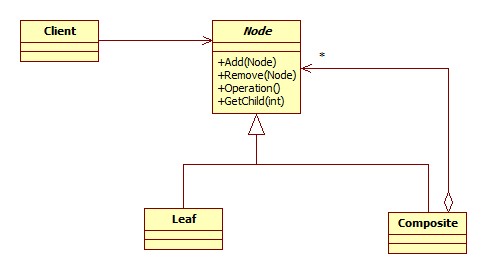
Let's take a quick look at the class diagram.

As you can see, the Node which defines the interface that our client class will be working with contains methods for adding, removing and retrieving nodes. A leaf-node cannot contain other nodes but must still inherit from the Node interface so these methods are superfluous, moreover, there may be methods or properties that apply only to a leaf node and not a component node. While this does break the "one class, one responsibility" paradigm, we get the benefit of being able to treat every part of the tree the same: as a Node. This can make for somewhat dangerous code if the client tries accessing something that does not apply to the object but there are ways to handle it and the ability to treat each part of the tree uniformly can be worth the added overhead.
For our example we'll build a mock folder tree with "folders" and "files". The folders will have a name and be able to contain either other folders or files. The files will have a name and a "description" string field but will be unable to contain other nodes. Likewise, our folders will have no description field.
//The interface all nodes will implement.
interface IDirectoryNode
{
    string Name { get; }
    string Description { get; set; }
    void AddNode(IDirectoryNode node);
    void RemoveNode(IDirectoryNode node);
    IDirectoryNode[] GetNodes();
}

//Our Composite node class.
class Folder : IDirectoryNode
{
    string _name;
    List<IDirectoryNode> _nodes = new List<IDirectoryNode>();

    string Name
    {
        get { return _name; }
    }

    string Description
    {
        //This is one way of handling this.
        //we return a null description and the
        //setter does nothing.  We could have
        //thrown an exception among other solutions.
        get { return null; }
        set { }
    }

    public Folder(string name)
    {
        _name = name;
    }

    public void AddNode(IDirectoryNode node)
    {
        _nodes.Add(node);
    }

    public void RemoveNode(IDirectoryNode node)
    {
        _nodes.Remove(node);
    }

    public IDirectoryNode[] GetNodes()
    {
        return _nodes.ToArray();
    }
}

//Now for the leaf nodes.
class File : IDirectoryNode
{
    string _name;
    string _description;

    string Name
    {
        get { return _name; }
    }

    string Description
    {
        get { return _description; }
        set { _description = value; }
    }

    public File(string name, string description)
    {
        _name = name;
        _description = description;
    }

    //These do nothing.
    public void AddNode(IDirectoryNode node) { }
    public void RemoveNode(IDirectoryNode node) { }

    public IDirectoryNode[] GetNodes()
    {
        return null;
    }
}
This is good is the sense that we can create Folders and Files and build our tree but there's not much we can do with it from there. We need a ways to traverse the tree. There are two ways to do this: with a depth-first search where we start at a node and visit all of its children before backtracking or a breadth-first search where we visit all the nodes on the same level before exploring their children.
We will implement both as a way to search for names and descriptions.
First we'll make methods that perform a depth-first search and return a list of nodes that match what we're looking for. We'll be using recursion in this example but there are iterative ways to do it as well. Let's add these new search methods to our interface and classes.
interface IDirectoryNode
{
    string Name { get; }
    string Description { get; set; }
    void AddNode(IDirectoryNode node);
    void RemoveNode(IDirectoryNode node);
    IDirectoryNode[] GetNodes();
    List<IDirectoryNode> SearchForNames(string name);
    List<IDirectoryNode> SearchForDescriptions(string descriptions);
}

class Folder : IDirectoryNode
{
    string _name;
    List&lt;IDirectoryNode&gt; _nodes = new List&lt;IDirectoryNode&gt;();

    string Name
    {
        get { return _name; }
    }

    string Description
    {
        get { return null; }
        set { }
    }

    public Folder(string name)
    {
        _name = name;
    }

    public void AddNode(IDirectoryNode node)
    {
        _nodes.Add(node);
    }

    public void RemoveNode(IDirectoryNode node)
    {
        _nodes.Remove(node);
    }

    public IDirectoryNode[] GetNodes()
    {
        return _nodes.ToArray();
    }

    public List<IDirectoryNode> SearchForNames(string name)
    {
        List<IDirectoryNode> results = new List<IDirectoryNode>();
        foreach (IDirectoryNode node in _nodes)
        {
            string nodeName = node.Name;

            //Some debugging to make sure we're traversing
            //the tree in the correct order.
            Console.WriteLine(
                "Visiting " + nodeName + " " + "the " + node.ToString());

            if (nodeName == name)
            {
                results.Add(node);
            }

            //Here is where we recurse down into the tree.
            results.AddRange(node.SearchForNames(name));
        }
        return results;
    }

    public List<IDirectoryNode> SearchForDescriptions(string description)
    {
        List<IDirectoryNode> results = new List<IDirectoryNode>();

        foreach (IDirectoryNode node in _nodes)
        {
            string nodeDescription = node.Description;

            //Some debugging to make sure we're traversing
            //the tree in the correct order.
            Console.WriteLine(
                "Visiting " + node.Name + " " + "the " + node.ToString());

            if (nodeDescription != null &&
                nodeDescription == description)
            {
                results.Add(node);
            }

            results.AddRange(node.SearchForDescriptions(description));
        }

        return results;
    }
}

class File : IDirectoryNode
{
    string _name;
    string _description;

    string Name
    {
        get { return _name; }
    }

    string Description
    {
        get { return _description; }
        set { _description = value; }
    }

    public File(string name, string description)
    {
        _name = name;
        _description = description;
    }

    //These do nothing.
    public void AddNode(IDirectoryNode node) { }
    public void RemoveNode(IDirectoryNode node) { }

    public IDirectoryNode[] GetNodes()
    {
        return null;
    }

    //These are not applicable so we just
    //return an empty list.
    public List<IDirectoryNode> SearchForNames(string name)
    {
        return new List<IDirectoryNode>();
    }

    public List<IDirectoryNode> SearchForDescriptions(string description)
    {
        return new List<IDirectoryNode>();
    }
}
Let's test this out by building a tree and searching for some things.
class Program
{
    static void Main(string[] args)
    {
        //Building our tree...
        IDirectoryNode documentsFolder = new Folder("Documents");
        IDirectoryNode gamesFolder = new Folder("Games");
        IDirectoryNode musicFolder = new Folder("Music");
        IDirectoryNode someGame = new File("Fun Time Game", "Whooo, fun!");
        IDirectoryNode someSong = new File("Happy Song", "La la la");
        IDirectoryNode textDocument = new File("Journal", "I had a good day!");
        IDirectoryNode textDocumentTwo = new File("Journal", "I had a bad day!");

        documentsFolder.AddNode(gamesFolder);
        documentsFolder.AddNode(musicFolder);
        documentsFolder.AddNode(textDocument);
        gamesFolder.AddNode(someGame);
        musicFolder.AddNode(someSong);
        musicFolder.AddNode(textDocumentTwo);

        //Now we can do searches.
        List<idirectorynode> nameResults = new List<idirectorynode>();
        nameResults = 
            documentsFolder.SearchForNames("Journal");

        foreach (IDirectoryNode node in nameResults)
        {
            Console.WriteLine(node.Name);
        }

        Console.WriteLine();

        List<idirectorynode> descriptionResults = 
            documentsFolder.SearchForDescriptions("La la la");

        foreach (IDirectoryNode node in descriptionResults)
        {
           Console.WriteLine(node.Name);
        }

        Console.ReadLine();
   }
}
As you can see, each child is being completely explored before moving on to the next.
Now let's try to make the breadth-depth search.
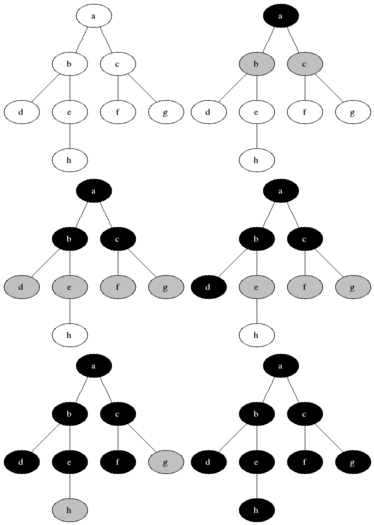
We'll be using a queue to keep track of the nodes we still need to explore. Once a node in the queue has been explored, it's removed from line and its children are added. This is repeated until the queue is empty.
This image from wikipedia illustrates the algorithm beautifully.


The grey nodes are the ones currently enqueued and the black nodes are the ones being visited.
For the sake of brevity I will write out just search methods. The interface needs the new stubs as well.
//The breadth-first Folder search implementation.
public List<IDirectoryNode> BreadthFirstNameSearch(string name)
{
    List<IDirectoryNode> result = new List<IDirectoryNode>();
    Queue<IDirectoryNode> searchQueue = new Queue<IDirectoryNode>();

    foreach (IDirectoryNode node in _nodes)
    {
        searchQueue.Enqueue(node);
    }

    while (searchQueue.Count != 0)
    {
        IDirectoryNode currentNode = searchQueue.Dequeue();

        Console.WriteLine(
            "Examining " + currentNode.ToString() + ", " + currentNode.Name);

        if (currentNode.Name == name)
        {
            result.Add(currentNode);                   
        }
        foreach (IDirectoryNode node in currentNode.GetNodes())
        {
            searchQueue.Enqueue(node);
        }
    }

    return result;
}

public List<IDirectoryNode> BreadthFirstDescriptionSearch(string description)
{
    List<IDirectoryNode> result = new List<IDirectoryNode>();
    Queue<IDirectoryNode> searchQueue = new Queue<IDirectoryNode>();

    foreach (IDirectoryNode node in _nodes)
    {
        searchQueue.Enqueue(node);
    }

    while (searchQueue.Count != 0)
    {
        IDirectoryNode currentNode = searchQueue.Dequeue();

        Console.WriteLine(
            "Examining " + currentNode.ToString() + ", " + currentNode.Name);


        if (currentNode.Description != null &&
            currentNode.Description == description)
        {
            result.Add(currentNode);                   
        }

        foreach (IDirectoryNode node in currentNode.GetNodes())
        {
            searchQueue.Enqueue(node);
        }
    }

    return result;
}
Since we cannot search files their implementations simply return empty lists.
If we had used a stack instead of a queue this would have resulting in a depth-first search. Testing this out:
class Program
{
    static void Main(string[] args)
    {
        IDirectoryNode documentsFolder = new Folder("Documents");
        IDirectoryNode gamesFolder = new Folder("Games");
        IDirectoryNode musicFolder = new Folder("Music");
        IDirectoryNode someGame = new File("Fun Time Game", "Whooo, fun!");
        IDirectoryNode someSong = new File("Happy Song", "La la la");
        IDirectoryNode textDocument = new File("Journal", "I had a good day!");
        IDirectoryNode textDocumentTwo = new File("Journal", "I had a bad day!");

        documentsFolder.AddNode(gamesFolder);
        documentsFolder.AddNode(musicFolder);
        documentsFolder.AddNode(textDocument);
        gamesFolder.AddNode(someGame);
        musicFolder.AddNode(someSong);
        musicFolder.AddNode(textDocumentTwo);

        List<IDirectoryNode> nameResults = new List<IDirectoryNode>();
        nameResults = 
            documentsFolder.BreadthFirstNameSearch("Journal");

        foreach (IDirectoryNode node in nameResults)
        {
            Console.WriteLine(node.Name);
        }

        Console.WriteLine();

        List<IDirectoryNode> descriptionResults = 
            documentsFolder.BreadthFirstDescriptionSearch("La la la");

        foreach (IDirectoryNode node in descriptionResults)
        {
            Console.WriteLine(node.Name);
        }

        Console.ReadLine();
    }
}


Notice the different order in which each node is visited.
This is just one very simple way to do this, there are more sophisticated and generalized ways of going about this but the algorithms themselves are the same or very similar.

And this concludes my Design Pattern series (for now)! Next I'll start focusing more on collision algorithms and game physics.
I hope you've enjoyed reading them as much as I have writing them!
Feel free to leave comments, questions, corrections or what have you. Thanks!

The Command Pattern

The Command pattern is way to separate a request for an action to be performed from the object that actually performs the action. It encapsulates method invocation allowing one to parameterize or change the object making the invocation on the fly.
It's also really neat.
First let's look at a very simple situation where we may need something like this.
Let's say we have two types of objects, a glass bottle and I don't know, a wooden box. If we drop the glass bottle it shatters instantly and is gone. The box however can be dropped a few times before breaking.
Let's see how two simple versions of these classes may be set up.
class Bottle
{
    bool _broken = false;

    public void Break()
    {
        if (_broken)
        {
            Console.WriteLine("The bottle is already broken");
        }
        else
        {
            _broken = true;
            Console.WriteLine("The bottle shatters");
        }
    }
}

class Box
{
    bool _broken = false;
    int _hitPoints = 3;

    public void Hit()
    {
        if (_broken)
        {
            Console.WriteLine("The box is broken irreparably.")
        }
        else
        {
            _hitPoints--;
            if (_hitPoints <= 0)
            {
                _broken = true;
                Console.WriteLine("The box breaks.")
            }
        }
    }
}

The methods Hit() and Break() are clearly fairly different from one another other besides the fact that they are both void and parameterless and they are both probably going to called during very similar situations.
So how would a client class have to deal with this? We can set up a very simple situation to demonstrate the problems that arise.
class Program
{        
    static void Main(string[] args)
    {
        Bottle bottle = new Bottle();
        Box box = new Box();
        string input = "";

        while (input.ToLower() != "q")
        {
            Console.WriteLine(
                "Press B to drop the (B)ottle, O to drop the B(o)x or Q to (Q)uit.");
            input = Console.ReadLine();

            if (input.ToLower() == "b")
            {
                bottle.Break();
            }
            else if (input.ToLower() == "o")
            {
                box.Drop();
            }               
        }
    }
}

It works now but this clearly will not do.
The above code is pretty bad on a number of levels. For starters the more objects added that can be dropped, the bulkier and just awful our client class becomes.
Secondly the client class (in this over simplified case it's the Program class) has too many responsibilities: accepting and interpreting user input and responding to the input (that problem specifically I'm not actually going over in this article but it's something to think about). A general design guideline is: one class, one responsibility. Moreover, in some cases our client class may not even have access to Bottles and Boxes as they may be hidden.
The Command pattern helps by introducing a new type of object called a command object which will contain a single method, Execute().
It's not an easy pattern to grasp at first (it wasn't for me anyway) but it's usefulness became apparent once I did.
Before we dive into the code, let's look at a real world analogy that mirrors how the command pattern works.
In a cafe we can can order many different types of beverages and each have a different procedure for making it. We give our drink order to the chashier who writes down the specifics of the drink we want. The slip encapsulates our drink order. It is then passed off to the barrista who interprets what's written on the slip and makes your drink.
You, the customer, know how to order a drink so you create a command (your order) and pass it off to the chashier. The chashier in turn takes the command you created and passes it to the barrista who makes the drink. Most real life cafe cashiers, of course, must also need to know how to prepare a drink, but for our purposes they do not and have completely separate responsibilities.
Now let's look at the various pieces of the pattern and see how they fit into the cafe scenario.
The Command pattern has a client class which is responsible for creating our command objects (the customer), the client then passes the command to the invoker. The invoker contains one or more references to a command objects which the client sets. Now the invoker can invoke one of these commands at any time, which is like having the barrista make the drinks. Since the invoker can call these methods at any time, we can even set up ques of commands to be executed in a certain order.
Moving back to our Box/Bottle issue, let's take a look at some code now to hopefully help gel the whole idea.
Starting with our command interface and objects:
interface ICommand
{
    void Execute();
}

class BottleDropCommand : ICommand
{
    Bottle _bottle;

    public BottleDropCommand(Bottle bottle)
    {
        _bottle = bottle;
    }

    public void Execute()
    {
        _bottle.Break();
    }
}

class BoxDropCommand : ICommand
{
    Box _box;

    public BoxDropCommand(Box box)
    {
        _box = box;
    }

    public void Execute()
    {
        _box.Drop();
    }
}

Now we need our invoker, a sort of item dropping interface to work with. This will hold two ICommand objects that we can execute at any time.
class SimpleItemDropper
{
    //We have two ICommand's at the moment but this can be extended
    //deal with any amount.
    ICommand _commandOne;
    ICommand _commandTwo

    public void SetCommandOne(ICommand command)
    {
        _commandOne = command;
    }

    public void SetCommandTwo(ICommand command)
    {
        _commandTwo = cammand;
    }
    
    //The item dropper doesn't care if it's a box or a bottle, it just
    //executes the set command!
    public void ExecuteOne()
    {
        _commandOne.Execute();
    }

    public void ExecuteTwo()
    {
        _commandTwo.Execute();
    }
}

Now our client class becomes:
class Program
{        
    static void Main(string[] args)
    {
        Bottle bottle = new Bottle();
        Box box = new Box();
        SimpleItemDropper itemDropper = new SimpleItemDropper();

        ICommand dropBottle = new BottleDropCommand(bottle);
        ICommand dropBox = new BoxDropCommand(box);

        itemDropper.SetCommandOne(dropBottle);
        itemDropper.SetCommandTwo(dropBox);

        itemDropper.ExecuteOne();
        itemDropper.ExecuteOne();
        itemDropper.ExecuteTwo();
        itemDropper.ExecuteTwo();
        itemDropper.ExecuteTwo();
        itemDropper.ExecuteTwo();
        itemDropper.ExecuteTwo();
        
        Console.ReadLine();
    }
}
Our output should look something like this:

And that's the Command pattern, a great way to
* encapsulate method invocation
* separate the invocation of a method from the object receiving the invocation request.

There are many more great uses of this pattern as it can do some very clever things. I suggest investigating further and more importantly experimenting with the pattern yourself. This is a very simple (and useless) example and the pattern can be tweaked and extended to your needs (just like any pattern!) but I've successfully conveyed how powerful this pattern is.
Thanks for reading!

Friday, December 9, 2011

The Facade Pattern

The Facade pattern is an incredibly simple pattern. In fact, there's a good chance you've implemented it in your projects before without being aware that you were using a design pattern.
This is a short and simple article, but it is a very useful pattern. The Facade pattern simplifies an interface.
A system can be made up of many classes, with complicated interdependencies, each with their own unique interface.
The Facade pattern is a way to simplify how the client interacts with these objects.
Let's say we have a bunch a classes that control various appliances in the house.
class KitchenLight
{
    public void On()
    {
        Console.WriteLine("Kitchen light on.");
    }
    
    public void Off()
    {
        Console.WriteLine("Kitchen light off.");
    }
}

class LivingRoomLight
{
    public void On()
    {
        Console.WriteLine("Living room light on.");
    }

    public void Off()
    {
        Console.WriteLine("Living room light off.");
    }
}

class TV
{
    int _channel;

    public int Channel
    {
        get { return _channel; }
    }

    public void On()
    {
        Console.WriteLine("TV on.");
    }

    public void Off()
    {
        Console.WriteLine("TV off.");
    }

    public void ChangeChannel(int channel)
    {
        _channel = channel;
    }
}

class DVD
{
    string _name;
    
    public string Name
    {
        get { return _name; }
    }

    public DVD(string name)
    {
        _name = name;
    }
}

class DVDPlayer
{
    TV _tv;
    DVD _dvd;

    public DVDPlayer(TV tv)
    {
        _tv = tv;
    }

    public void On()
    {
        Console.WriteLine("DVD on.");
    }

    public void Off()
    {
        Console.WriteLine("DVD off.");
    }

    public void PlayMovie()
    {
        if (_tv.Channel == 4)
        {
            if (_dvd != null)
            {
                Console.WriteLine("Playing " + _dvd.Name);
            }
            else
            {
                Console.WriteLine("No disc in player.");
            }
        }
        else
        {
            Console.WriteLine("TV must be on channel 4.");
        }
    }

    public void InsertDVD(DVD dvd)
    {
        Console.WriteLine("Inserting " + _dvd.Name);
        _dvd = dvd;
    }    
}
Seems simple but now what if we want to watch a movie? From our client class we'd have to....
class Program
{
    static void Main(string[] args)
    {
        KitchenLight kitchenLight = new KitchenLight();
        LivingRoomLight livingRoomLight = new LivingRoomLight();
        TV tv = new TV();
        DVDPlayer dvdPlayer = new DVDPlayer(tv);
        DVD dvd = new DVD("Memento");

        //We'd have to do all this!
        kitchenLight.Off();
        tv.On();
        tv.ChangeChannel(4);
        dvdPlayer.On();
        dvdPlayer.InsertDVD(dvd);
        livingRoomLight.Off();
        dvdPlayer.PlayMovie();
    }
}
That's a lot just to watch a dvd. And when we're done, we'll have to do the whole thing again in reverse.
And, oh no! We just got an XBox and a new game!
class XBoxGame
{
    string _name;

    public string Name
    {
        get { return _name; }
    }

    public XBoxGame(string name)
    {
        _name = name;
    }
}

class XBox
{
    TV _tv;
    XBoxGame _game;

    public DVDPlayer(TV tv)
    {
        _tv = tv;
    }

    public void On()
    {
        Console.WriteLine("XBox on.");
    }

    public void Off()
    {
        Console.WriteLine("XBox off.");
    }

    public void PlayGame()
    {
        if (_tv.Channel == 4)
        {
            if (_game != null)
            {
                Console.WriteLine("Playing " + _game.Name);
            }
            else
            {
                Console.WriteLine("No game in console.");
            }
        }
        else
        {
            Console.WriteLine("TV must be on channel 4.");
        }
    }

    public void InsertGame(XBoxGame game)
    {
        Console.WriteLine("Inserting " + _game.Name);
        _game = game;
    }    
}
This is getting ridiculous.
Luckily the facade pattern can help. A facade is basically a class that holds all these interconnected classes and knows how to interact with them.
Let's see how.
class HomeApplianceFacade
{
    TV _tv;
    DVDPlayer _dvdPlayer;
    KitchenLight _kitchenLight;
    LivingRoomLight _livingRoomLight;
    XBox _xbox;

    public HomeApplianceFacade(
        TV tv,
        DVDPlayer dvdPlayer,
        KitchenLight kitchenLight,
        LivingRoomLight livingRoomLight,
        XBox xbox)
    {
        _tv = tv;
        _dvdPlayer = dvdPlayer;
        _kitchenLight = kitchenLight;
        _livingRoomLight = livingRoomLight;
        _xbox = xbox;
    }

    public void WatchMovie(DVD dvd)
    {
        kitchenLight.Off();
        tv.On();
        tv.ChangeChannel(4);
        dvdPlayer.On();
        dvdPlayer.InsertDVD(dvd);
        livingRoomLight.Off();
        dvdPlayer.PlayMovie();
    }

    public void FinishedMovie()
    {
        _livingRoomLight.On();
        _dvdPlayer.Off();
        _tv.Off();
        _kitchenLight.On();
    }

    public void PlayGame(XBoxGame game)
    {
        _kitchenLight.Off();
        _tv.On();
        _tv.ChangeChannel(4);
        _xBox.On();
        _xBox.InsertGame(game);
        _livingRoomLight.Off();
        _xBox.PlayGame();
    }

    public void FinishedPlayingGame()
    {
        _livingRoomLight.On();
        _xBox.Off();
        _tv.Off();
        _kitchenLight.On();

    }
}
Now we have a few methods that deal with all the low level classes correctly so we don't have to deal with it every time.
When we want to watch a movie or something we deal directly with the Facade we've created. We can still access the low level stuff if we want to, but the simplified interface is there if we need it.
class Program
{
    static void Main(string[] args)
    {
        //We still have to 'install' our system.
        KitchenLight kitchenLight = new KitchenLight();
        LivingRoomLight livingRoomLight = new LivingRoomLight();
        TV tv = new TV();
        DVDPlayer dvdPlayer = new DVDPlayer(tv);

        //But now we have a facade to handle all the complicated stuff.
        HomeApplianceFacade applianceFacade =
            new HomeApplianceFacade(tv, dvdPlayer, kitchenLight, livingRoomLight, xBox);

        //Our simplified interface.
        applianceFacade.WatchMovie(new DVD("Memento"));
        applianceFacade.FinishedMovie();
        applianceFacade.PlayGame(new XBoxGame("Skyrim"));
        applianceFacade.FinishedPlayingGame();
    }
}
And that's pretty much it! The Facade pattern; a great way to create a unified interface to simplify a complicated subsystem.

Thanks, as always for reading and I hope you enjoyed the article.

Sunday, December 4, 2011

Intersection Testing in 2D

Whether or not you plan on making a game with a fancy physics engine you'll more than likely still have to check for collisions at some point. In games, a collision is generated when two or more pieces of geometry are intersecting. Testing to see if two geometrical figures are in intersection (or sometimes called interpenetration) can be a complicated and expensive task.

In this article I will go over several common shapes in 2 dimensions and investigate how we can test a pair of them for intersection. We will also discuss a general method for testing shapes of a certain class.
Responding to the intersections (and finding them fast) is beyond the scope of this article. This article is concerned only with checking for intersection but is still a pretty large subject.

If you're a little shaky on your mathematics, then I suggest that you refresh yourself thoroughly at least. A good understanding of high school math as well as a lot of college level stuff is integral in the development of games. There's no way around it.
That said, I am not trying to scare you so I will try to be as gentle as possible. The more you do it the easier it gets.

We'll go over the 2D shapes covered briefly then investigate how to test for an intersection between pairs of them.

The Circle


A circle is the set of points in the plane that are the same distance from a common point called its center. This distance from a point in the set to the center is its radius.
We can denote the center of a circle by a point in space with its x and y values, or by a vector and its radius by a real number. Although we'll be working with floats or doubles instead of the infinitude of the reals.
Now we can represent a circle by the equation:
$(x-c_x)^2+(y-c_y)^2=r^2$
Where,
$C = (c_x, c_y)$
is the circle's center point with its x and y components and r is the radius.
Every pair of reals, x and y that satisfy this equation for a given real number, r and a point C, is a point on the (unique) circle of radius, r centered at, C.


We can represent a circle simply by storing its position and radius into memory.
class Circle
{
    public Vector2 Center;
    public float Radius;
}

Rectangle


We'll be dealing with two kinds of rectangles here, axis-aligned, often called bounding boxes and non-axis-aligned. When we're referring to the axis-aligned situation we'll specifically say so, otherwise we'll just say 'rectangle' or 'box'.


Axis-aligned boxes have each of their edges parallel to the coordinate axis while the regular boxes do not.
The built-in Rectangle structure that comes with XNA is axis-aligned.
Many calculations become much simpler when we're dealing with rectangles that are axis-aligned but we'll be looking at both cases.
An axis-aligned box simply has a location (usually referring to the upper-left corner), a width and a height. No other information is needed to describe the bounding box.
class AxisAlignedBox
{
    public Vector2 Position;
    public float Width;
    public float Height;
}
In the other case we need to store a position, a width, a height and an angle of rotation.


Here, P is the position and,
$\theta$
(pronounced 'theta') is the angle. A positive angle is measured counter-clockwise.
In XNA, by default the origin is the upper-left hand corner of the sprite we're rotating but we'll normally be rotating a box about it's center or perhaps it's center of mass. We'll see how to deal with these things later on.

Other Polygons


There are many different polygons and the only ones we'll look at in any depth are the convex polygons. This is where it get very complicated very quickly and we'll briefly discuss a general method of testing.

Circle-circle test


Two circles in the plane don't intersect if the distance between their centers is greater than the sum of their radii. That is,

$d(c1, c2) = \sqrt{(c1_x-c2_x)^2+(c1_y-c2_y)^2} > r1+r2$

d(c1, c2) is the distance between the centers and c1 and c2 are the centers subscripted by their x or y component.

The distance from center to center is larger than their combined radii.  No intersection.
The distance between their centers is smaller than the sum of their radii, hence, they intersect.

To avoid expensive square root computations we usually compare the square of the distance to the square of the sum of the radii since the inequality remains true.
$(c1_x-c2_x)^2+(c1_y-c2_y)^2 >(r1+r2)^2$
the above is true if the circles don't touch.
Adding this to our Circle class,
class Circle
{
    public Vector2 Center;
    public float Radius;

    //Returns true if this circle intersects another
    //or they are 'just touching'.
    public bool Intersects(Circle circle)
    {
        Vector2 center1 = Center;
        Vector2 center2 = circle.Center;
        float radius1 = Radius;
        float radius2 = circle.Radius;

        float distanceSquared = 
            (float)Math.Pow((center1.X - center2.X), 2) +
            (float)Math.Pow((center1.Y - center2.Y), 2);
        float sumOfRadiiSquared = (float)Math.Pow(radius1 + radius2, 2);
        
        if (distanceSquared <= sumOfRadiiSquared)
        {
            return true;
        }
        else
        {
            return false;
        } 
    }
}

Box-box test (axis aligned)


The test for two axis-aligned boxes is fairly straight forward. We'll need to add a few properties to our class first though,
class AxisAlignedBox
{
    public Vector2 Position;
    public float Width;
    public float Height;

    //y value of uppermost side.
    public float Top
    {
        get { return Position.Y; }
    }

    //y value of lowest side.
    public float Bottom
    {
        get { return Position.Y + Height; }
    }

    //x value of left most side.
    public float Left
    {
        get { return Position.X; }
    }
    
    //x value of right most side.
    public float Right
    {
        get { return Position.X + Width; }
    }
}
The basic idea is that is if the rectangles intersect, then the top side of one (or the bottom side) will be within the bounds set by the top and bottom sides of the other rectangle. Likewise the left side of one (or the right side) will be within the bounds set by the left and right sides of the other rectangle.
Take a look at this picture.


Here, we are testing three different rectangles against the shaded rectangle we'll call, R.
The bottom side of A is below the top side of R and above the bottom side of R, ie. the bottom side of A is within the bounds set by the top and bottom sides of R.  Both the left and right sides of A are within the left-right bounds of R. Even though the top side of A is not within the top-bottom bounds, it still intersects.
For B, the top side is within the top and bottom bounds of R and the left side is within R's left and right bounds.
C, while its right side is within the left-right bounds of R, neither it's top nor its bottom sides are within the proper top-bottom bounds of R and it doesn't intersect.
Take a look at the follow case, though.

Rectangle D clearly intersects, but neither it's top nor bottom is within the top-bottom range of R.  However, both the top and bottom of R are in D's top-bottom range.
So, roughly in logical terms,
(bottom OR top is within top-bottom bounds of one OR the same with the other) AND
(left OR right is within left-right bounds of one OR the same with the other).
We're pretty much ready to write our algorithm.

class AxisAlignedBox
{
    public Vector2 Position;
    public float Width;
    public float Height;

    //y value of uppermost side.
    public float Top
    {
        get { return Position.Y; }
    }

    //y value of lowest side.
    public float Bottom
    {
        get { return Position.Y + Height; }
    }

    //x value of left most side.
    public float Left
    {
        get { return Position.X; }
    }
    
    //x value of right most side.
    public float Right
    {
        get { return Position.X + Width; }
    }

    public bool Intersects(AxisAlignedBox box)
    {
        bool areBottomsInBounds =
            (Bottom >= box.Top && Bottom <= box.Bottom) ||
            (box.Bottom >= Top && box.Bottom <= Bottom);

        bool areTopsInBounds =
            (Top >= box.Top && Top <= box.Bottom) ||
            (box.Top >= Top && box.Top <= Bottom);

        bool areLeftsInBounds =
            (Left >= box.Left && Left <= box.Right) ||
            (box.Left >= Left && box.Right <= Right);

        bool areRightsInBounds =
            (Right >= box.Left && Right <= box.Right) ||
            (box.Right >= Left && box.Right <= Right);

        bool intersects = (areBottomsInBounds || areTopsInBounds) &&
            (areLeftsInBounds || areRightsInBounds);


        return intersects;
    }
}
Another, way to do this which will also be enlightening later on is to note that for rectangle A in the above illustration, the distance from the top of A to the bottom of R is less than the sum of the height of A and the height of R, while at the same time, the distance between the left of A and the right of R is less than the sum of the width of A and width of R. In general, the distance between the uppermost and lowermost points is less than the sum of the heights and the distance between the leftmost and rightmost points is less than the sum of the widths.
The code for the other method,
class AxisAlignedBox
{
    public Vector2 Position;
    public float Width;
    public float Height;

    //y value of uppermost side.
    public float Top
    {
        get { return Position.Y; }
    }

    //y value of lowest side.
    public float Bottom
    {
        get { return Position.Y + Height; }
    }

    //x value of left most side.
    public float Left
    {
        get { return Position.X; }
    }
    
    //x value of right most side.
    public float Right
    {
        get { return Position.X + Width; }
    }

    public bool Intersects(AxisAlignedBox box)
    {
        //The nested Max calls find the maximum of four different values.
        //Similarly with the nested Min values we find the minimum of more than two values.
        float horizontalDistance = Math.Max(Right, 
                                       Math.Max(box.Right, 
                                           Math.Max(Left, box.Left))) - 
                                   Math.Min(Right, 
                                       Math.Min(box.Right, 
                                           Math.Min(Left, box.Left)));
        float verticalDistance =  Math.Max(Top, 
                                      Math.Max(box.Top, 
                                          Math.Max(Bottom, box.Bottom))) - 
                                  Math.Min(Top, 
                                      Math.Min(box.Top, 
                                          Math.Min(Bottom, box.Bottom)));

        bool intersects = (float)Math.Abs(horizontalDistance) <= Width + box.Width &&
                          (float)Math.Abs(verticalDistance) <= Height + box.Height
     
        return intersects;       
    }
}

Box-box test (general)

Before continuing further we need to talk about an important mathematical theorem called the separating axis theorem. We've already used a result of this theorem in the last example and it will end up being the basis for many other intersection problems in the future. We'll go into the theorem in some depth, what it implies and how we can use it to test for intersections.

The Separating Axis Theorem


The separating axis theorem states that two convex polygons do not intersect if and only if there exists a line such that when we project the shapes onto that line, the projections do not overlap. The line we project onto is called the axis of separation.

First let's clear up the term "projection onto a line".
The term, projection seems a little overloaded with definitions but they are all closely related.
In our case, we can say informally that we're 'casting a shadow' of the object onto a line.
This picture illustrates three shapes being projected onto an arbitrary line, the x-axis and the y axis.
Here we see three shapes being projected onto three lines:  The x and y axis and an arbitrary line, L.
The projections are regions of the line. Notice shape C is an axis-aligned box; its x and y projections are the same left-right and top-bottom bounds that we used earlier. In fact, the term in the conditional that states the box we're testing must have its bottom OR top side within the top-bottom bound of the other box is analogous to saying that the boxes' projections onto the y-axis overlap (look at the illustration from the axis aligned box-box section to make sure you see why).
None of these shapes intersect so according to the theorem, there exists a line such that the shapes projections onto that line are separate. Here we see two: the x-axis and the line, L.
This theorem says a lot about when shapes don't intersect but what can we say about when they do? Well, we simply have to negate the theorem to see that two convex polygons intersect if and only if there does not exit a line with said properties. That is, no matter how many lines you project your polyhedra onto, the projections will always overlap.
This poses a problem since there are infinitely many lines we could check.
Luckily in the case of convex polygons there are only a few axis we need to check.
Notice in the axis-aligned box-box method, we only checked the projections of two lines: the x and the y axis. Since both boxes were aligned to those axis those were the only two we had to check.
For a convex polygon, it is sufficient to check the shapes against the axis determined by the normals of each edge (source). If we come across projections that don't overlap we have an early out which will speed up the calculation and if we get through them all and all the projections overlap, then the shapes intersect.
Once we have projections (or the length of them) we can check to see if they overlap similarly to the axis aligned case above.

Before we checked the total distance between the uppermost or lowermost points against the sum of the widths or heights depending.
Now we're checking the distance between the extreme points of the projections along the axis and testing that against the sum of the lengths of the projections. But how do we project these polygons against an axis and find these lengths to begin with?

To start, we'll need to know about vector projection.
The projection of $\bar{a}$ onto $\bar{b}$ is,
$(\bar{a}\cdot\bar{b})\bar{b}=(|\bar{a}|\cos{\theta})\bar{b}$
This can be thought of as the "$\bar{b}$ component of $\bar{a}$". It's in the direction of $\bar{b}$ with a magnitude that varies between $|\bar{a}|$ (when $\bar{a}$ is parallel to $\bar{b}$) and 0 (when $\bar{a}$ is normal to $\bar{b}$).
We also need to tweak our Box class a bit. A lot of the math becomes easier when we keep track of the box's center, its half-height and its half-width. These are similar to a circle's radius except they're vector quantities.


class Box
{
    //Pseudo-code...
    public Vector2 Center;
    public Vector2 HalfHeight;
    public Vector2 HalfWidth;
    public float Angle;
}
Now to measure a projection along a certain axis, take a look at the following illustration,

The half-width and half-height projections give us a handy way to measure a shape along an axis. As for the total distance we need only to project the distance between centers onto the axis and find that length. This give us half the total distance. So we can check the length of the projected vectors against that.

To sum up the algorithm we've been piecing together so far:
1. Get the normals of each box, removing duplicates and normals in the opposite direction.
For each normal:
2. Project both of the boxes' half-widths and half-heights onto it and find the sum of their lengths (note: not the length of their sum, since the projections point in opposite directions they tend to cancel eachother). We'll call these H1 and H2 for each box.
3. Project the difference vector of the boxes' centers onto the normal and find its length, we'll call it D.
4. if D > H1 + H2, then there's no overlap, hence no intersection. Otherwise:
5. if there's more normals get the next normal and repeat. Otherwise, all projections overlap and we have an intersection!
And now we're ready to take a look at our new Box class with the interection method.
class Box
{
    public Vector2 Center;
    //We store these as floats for now,
    //we only need the vector versions during
    //intersection testing.
    public float HalfWidth;
    public float HalfHeight;
    public float Angle;

    public bool Intersects(Box box)
    {
        //Transform the half measures
        Vector2 halfWidthVectOne = Vector2.Transform(
            HalfWidth * Vector2.UnitX, Matrix.CreateRotationZ(Angle));
        Vector2 halfHeightVectOne = Vector2.Transform(
            HalfHeight * Vector2.UnitY, Matrix.CreateRotationZ(Angle));
        Vector2 halfWidthVectTwo = Vector2.Transform(
            box.HalfWidth * Vector2.UnitX, Matrix.CreateRotationZ(box.Angle));
        Vector2 halfHeightVectTwo = Vector2.Transform(
            box.HalfHeight * Vector2.UnitY, Matrix.CreateRotationZ(box.Angle));
            
        //They'll work as normals too.
        Vector2[] normals = new Vector2[4];
        normals[0] = halfWidthVectOne;
        normals[1] = halfWidthVectTwo;
        normals[2] = halfHeightVectOne;
        normals[3] = halfHeightVectTwo;

        for (int i = 0; i < 4; i++)
        {
            normals[i].Normalize();

            //Project the half measures onto the normal...
            Vector2 projectedHWOne =
                Vector2.Dot(halfWidthVectOne, normals[i]) * normals[i];
            Vector2 projectedHHOne =
                Vector2.Dot(halfHeightVectOne, normals[i]) * normals[i];
            Vector2 projectedHWTwo =
                Vector2.Dot(halfWidthVectTwo, normals[i]) * normals[i];
            Vector2 projectedHHTwo =
                Vector2.Dot(halfHeightVectTwo, normals[i]) * normals[i];

            //Calculate the half lengths along the separation axis.
            float halfLengthOne = projectedHWOne.Length() + projectedHHOne.Length();
            float halfLengthTwo = projectedHWTwo.Length() + projectedHHTwo.Length();

            //Find the distance between object centers along the separation axis.
            Vector2 difference = (Center - box.Center);
            Vector2 projectedDiff =
                Vector2.Dot(difference, normals[i]) * normals[i];
            float projectedDistance = projectedDiff.Length();
            
            //Test for early out.
            if (projectedDistance > halfLengthOne + halfLengthTwo)
            {
                return false;
            }
        }
        //We tested every normal axis,
        //we must be in intersection!
        return true;
    }
}
This test secretly assumes that the rotation is about the center point. Otherwise, we'd need to transform the centers to account for the rotation about a different point. If we were dealing with an origin that was located in the upper-left corner of the box, for example, we'd translate the position by the rotated half-measures to get the correct center.
Also, while we were able to remove a few normals because we knew they were boxes (the ones in the opposite direction as another), we did not go through and test for duplicates. For larger polygons with more normals it may be faster to filter out the duplicate normals.

Circle-box test


For convex polygons there are a finite, if not very large number of normals to check. For a circle one could say there are an infinite amount of normals to check. On the plus side, if we can find a sufficient amount of normals to check, the projection is always the same.
Using the same source, we're going to implement the 'naive' axis test where we test against every axis determined by the circles center and a vertex on the box.
Ideally we would only need to check against the one determined by the closest vertex.
Adding a new method to our Box class,
public bool Intersects(Circle circle)
{
    //Transform the half measures
    Vector2 halfWidthVect = Vector2.Transform(
        HalfWidth * Vector2.UnitX, Matrix.CreateRotationZ(Angle));
    Vector2 halfHeightVect = Vector2.Transform(
        HalfHeight * Vector2.UnitY, Matrix.CreateRotationZ(Angle));

    Vector2[] normals = new Vector2[6];
    normals[0] = halfHeightVect;
    normals[1] = halfWidthVect;
    normals[2] = circle.Center - (Center + halfHeightVect);
    normals[3] = circle.Center - (Center - halfHeightVect);
    normals[4] = circle.Center - (Center + halfWidthVect);
    normals[5] = circle.Center - (Center - halfWidthVect);

    for (int i = 0; i < 6; i++)
    {
        normals[i].Normalize();
        Vector2 projectedHalfWidth =
            Vector2.Dot(halfWidthVect, normals[i]) * normals[i];
        Vector2 projectedHalfHeight =
            Vector2.Dot(halfHeightVect, normals[i]) * normals[i];

        float halfLength = projectedHalfHeight.Length() + projectedHalfWidth.Length();

        Vector2 difference = Center - circle.Center;
        Vector2 projectedDifference =
            Vector2.Dot(difference, normals[i]) * normals[i];
        float projectedDistance = projectedDifference.Length();

        if (projectedDistance > halfLength + circle.Radius)
        {
            return false;
        }
    }
    return true;
}
I also added a method in the Circle class,
public bool Intersects(Box box)
{
    return box.Intersects(this);
}
When I tested this I needed to set the box's origin properly:
protected override void Draw(GameTime gameTime)
{
    GraphicsDevice.Clear(Color.CornflowerBlue);

    Color color = circle.Intersects(rotatedBoxTwo)||circle.Intersects(rotatedBoxOne) ? 
        Color.Red : Color.White;


    spriteBatch.Begin();

    Vector2 scaleOne = new Vector2(
        rotatedBoxOne.Width / (float)boxTexture.Width,
        rotatedBoxOne.Height / (float)boxTexture.Height);
    Vector2 scaleTwo = new Vector2(
        rotatedBoxTwo.Width / (float)boxTexture.Width,
        rotatedBoxTwo.Height / (float)boxTexture.Height);

    float circleScale = 2f* circle.Radius / (float)circleTexture.Width;

    //Remembering the origin is in texture coordinates, we must scale it down.
    spriteBatch.Draw(
        boxTexture,
        rotatedBoxOne.Center,
        null,
        color,
        rotatedBoxOne.Angle,
        new Vector2(rotatedBoxOne.HalfWidth, rotatedBoxOne.HalfHeight) / scaleOne,
        scaleOne,
        SpriteEffects.None,
        0f);

    spriteBatch.Draw(
        boxTexture,
        rotatedBoxTwo.Center,
        null,
        color,
        rotatedBoxTwo.Angle,
        new Vector2(rotatedBoxTwo.HalfWidth, rotatedBoxTwo.HalfHeight) / scaleTwo,
        scaleTwo,
        SpriteEffects.None,
        0f);

    spriteBatch.Draw(
        circleTexture,
        circle.Center,
        null,
        color,
        0f,
        new Vector2(circle.Radius, circle.Radius) / circleScale,
        circleScale,
        SpriteEffects.None,
        0f);
                
    spriteBatch.End();

    base.Draw(gameTime);
}
I hope this cleared a lot of stuff up about intersections between shapes. Again, if you're intersested, check out this page for more information. There's algorithms about some convex shapes too.
Thanks for reading!